OpusClip app design: 26 real screens in 6 flows
Turn long videos into shorts. Category: Photo & Video. By Opusclip Inc.
Captured on iPhone and updated November 2026. Each screen has a short note on what it shows and why it matters for growth.
OpusClip onboarding (3 screens)
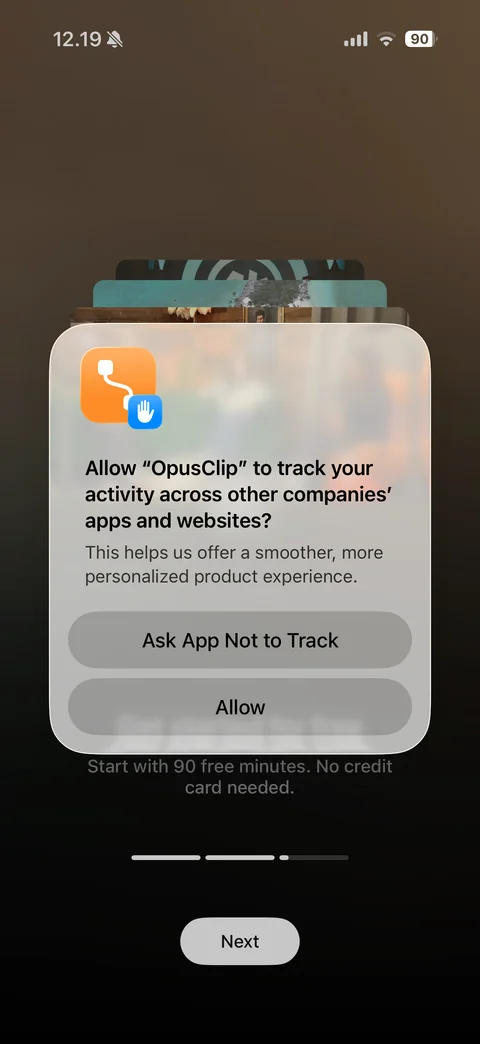
iOS App Tracking Transparency alert over the first welcome slide: Allow OpusClip to track your activity across other companies' apps and websites?, reason text, Ask App Not to Track and Allow buttons
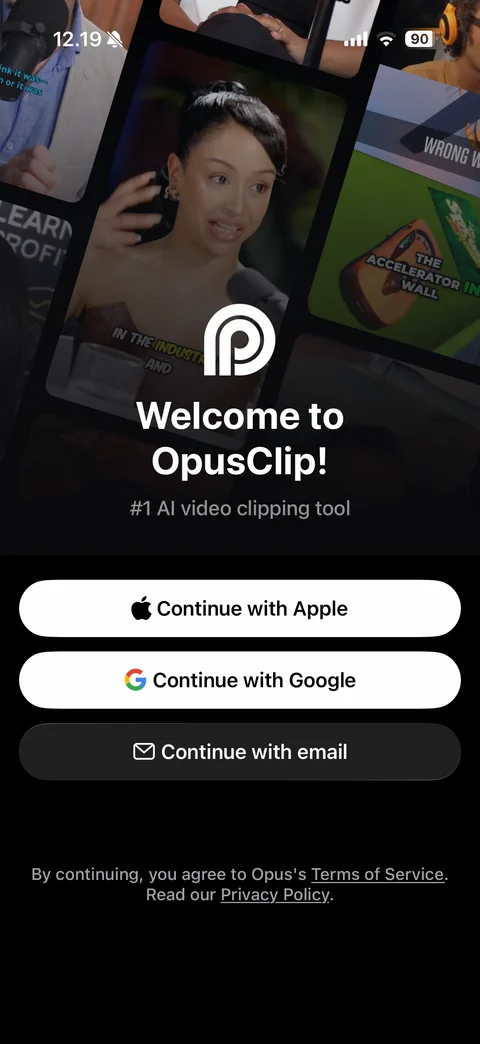
Sign-in welcome: tilted collage of captioned short-form video clips, OpusClip logo, Welcome to OpusClip!, #1 AI video clipping tool, Continue with Apple, Google and email buttons, terms and privacy links
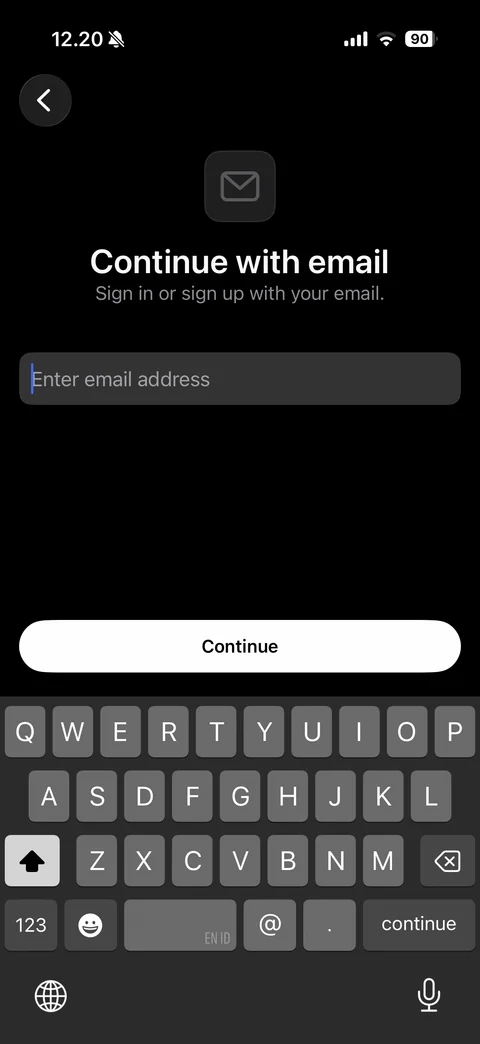
Continue with email (dark): back, envelope icon tile, title, Sign in or sign up with your email, email field focused, white Continue button above dark keyboard
OpusClip paywall (2 screens)
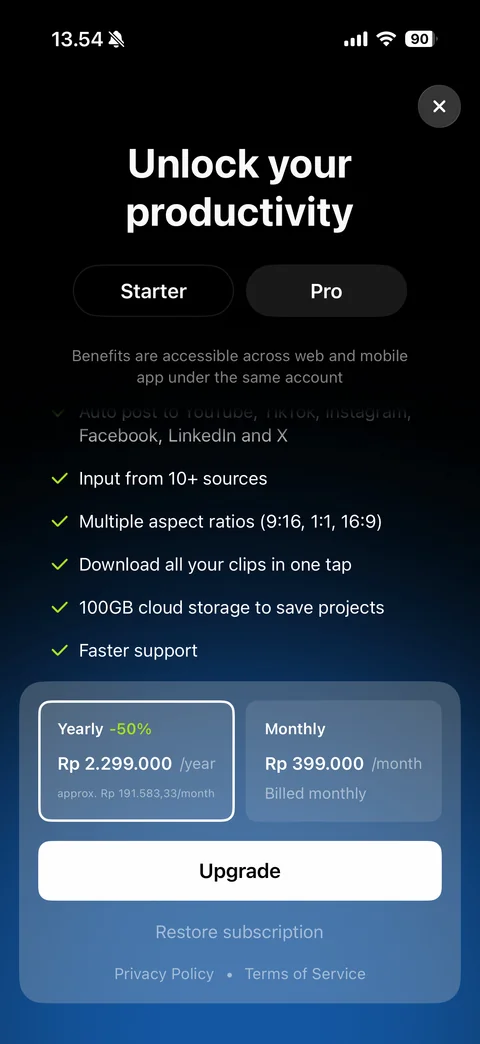
Pro paywall (dark with blue glow): close button, Unlock your productivity, Starter / Pro plan toggle with Pro selected, cross-platform note, green check feature list (auto post to socials, 10+ sources, aspect ratios, download all clips, 100GB storage, faster support), Yearly -50% plan card selected with monthly equivalent and Monthly card with IDR prices, white Upgrade button, Restore subscription, Privacy Policy and Terms links
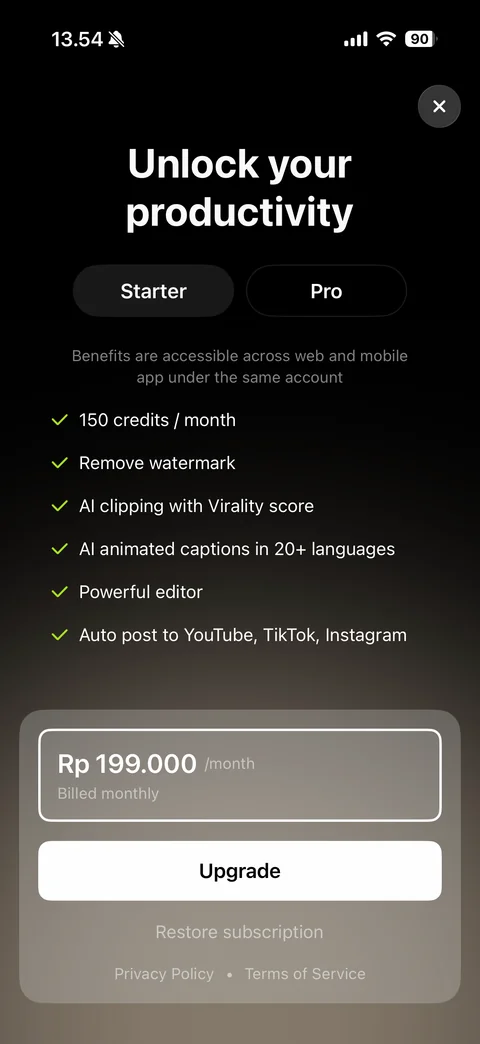
Starter plan paywall: Starter selected in the plan toggle, background glow turns warm grey, feature list (150 credits / month, remove watermark, AI clipping with Virality score, AI animated captions in 20+ languages, powerful editor, auto post), single monthly price card, Upgrade button
OpusClip app (4 screens)
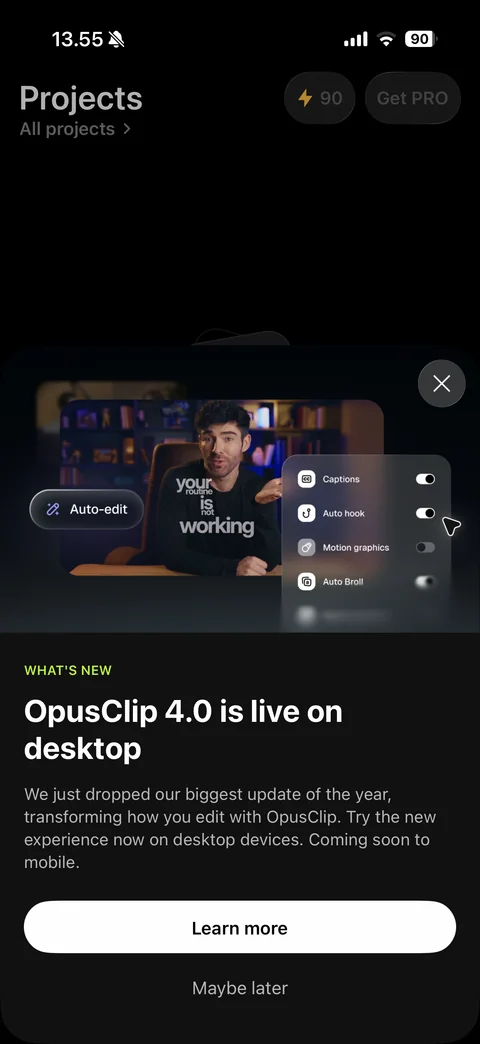
What's new bottom sheet over Projects: close, product image of a talking-head video with bold caption overlay, Auto-edit pill and toggle panel (Captions, Auto hook, Motion graphics, Auto Broll), lime WHAT'S NEW label, OpusClip 4.0 is live on desktop, description, white Learn more button, Maybe later link
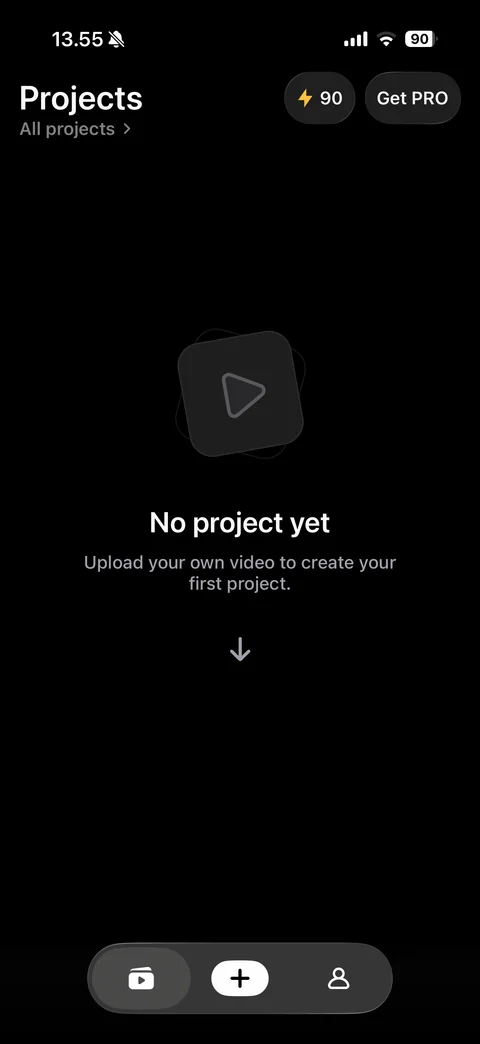
Projects tab empty state (dark): Projects title with All projects link, lightning credits pill 90 and Get PRO pill, stacked play-button tile icon, No project yet, Upload your own video to create your first project., down arrow pointing to the tab bar, floating tab bar with projects, white plus and profile
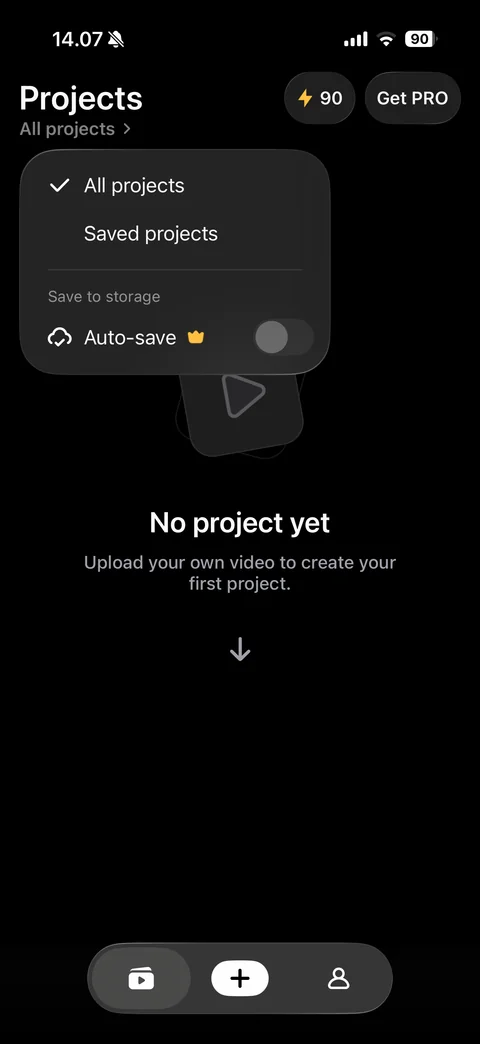
Projects filter menu: dark popover with All projects (checked) and Saved projects, Save to storage section with Auto-save toggle off and gold crown Pro badge
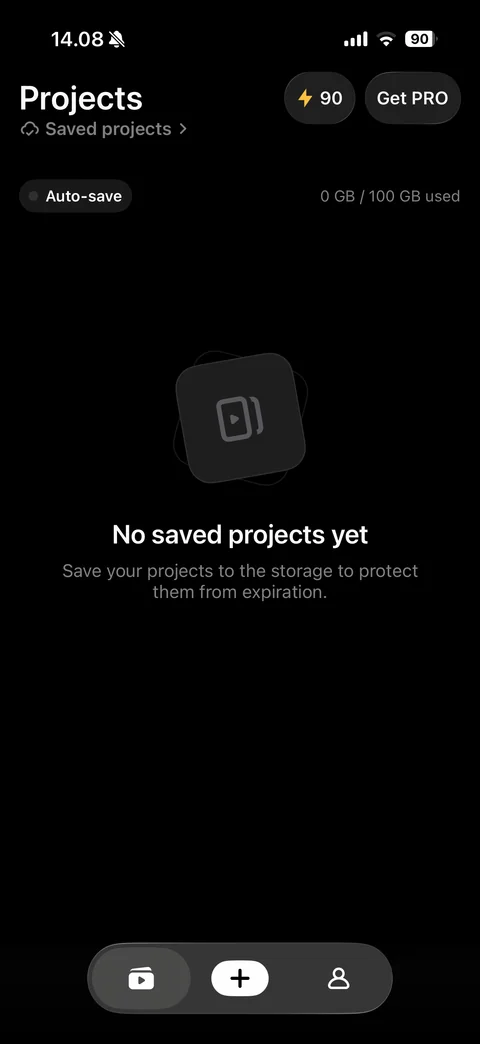
Saved projects empty state: cloud Saved projects link, Auto-save status pill with grey dot, storage meter 0 GB / 100 GB used, stacked video tile icon, No saved projects yet, Save your projects to the storage to protect them from expiration.
OpusClip create (9 screens)
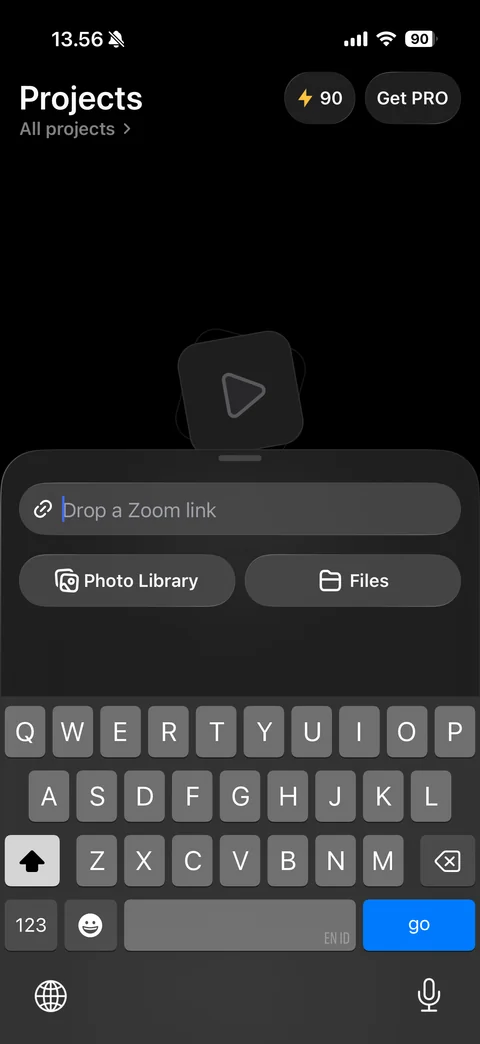
Upload source sheet (dark): link field with rotating placeholder Drop a Rumble link, Photo Library and Files buttons with icons, dark keyboard with blue go key
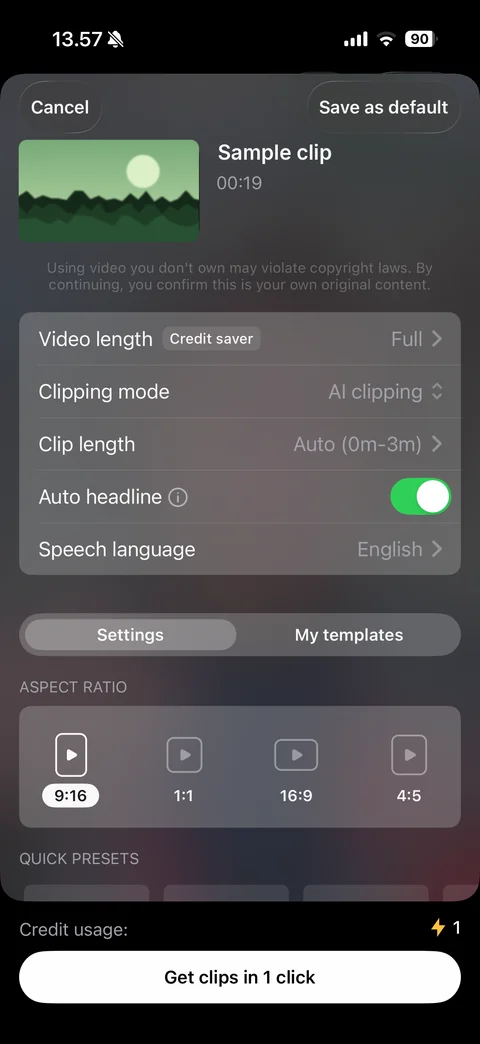
Clip settings sheet (glassy dark): Cancel and Save as default, video thumbnail (sample) with title and duration, copyright confirmation note, settings card (Video length Full with Credit saver tag, Clipping mode AI clipping, Clip length Auto 0m-3m, Auto headline toggle on, Speech language English), Settings / My templates segmented control, Aspect ratio picker 9:16 selected, 1:1, 16:9, 4:5, Quick presets row, Credit usage 1, Get clips in 1 click button
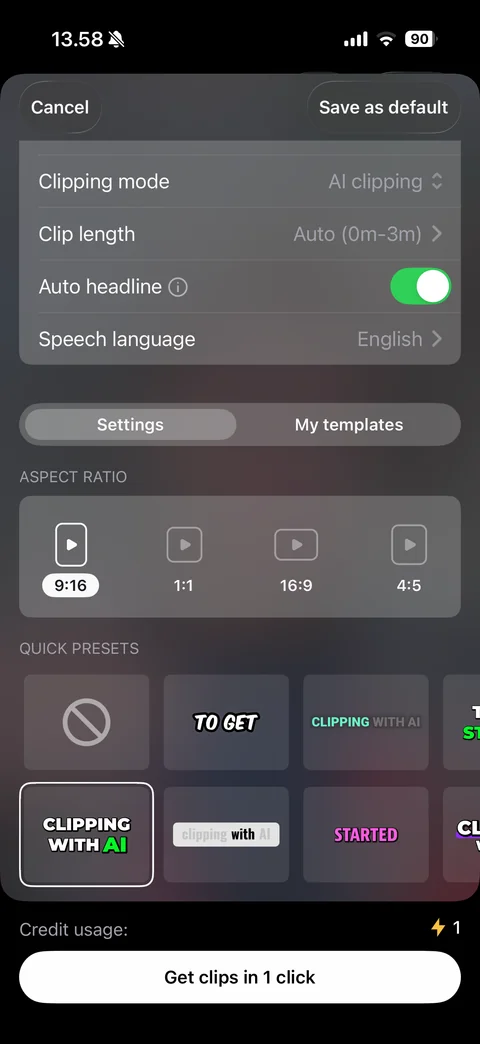
Clip settings scrolled: Aspect ratio picker, Quick presets grid of caption style tiles (none, bold white outline, green highlight word, white box, magenta, CLIPPING WITH AI selected with white border), Credit usage 1, Get clips in 1 click button
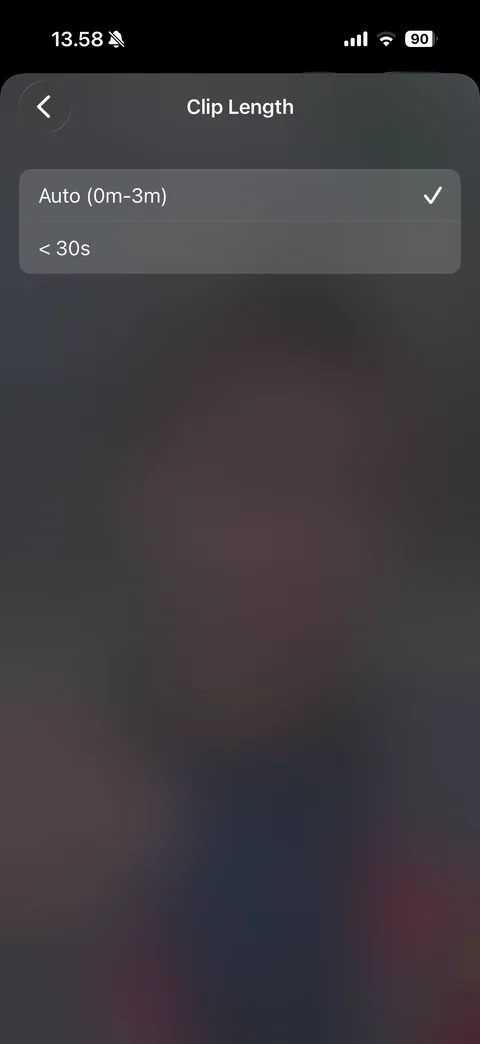
Clip Length page: back, title, glassy list with Auto (0m-3m) checked and < 30s option over a heavily blurred background
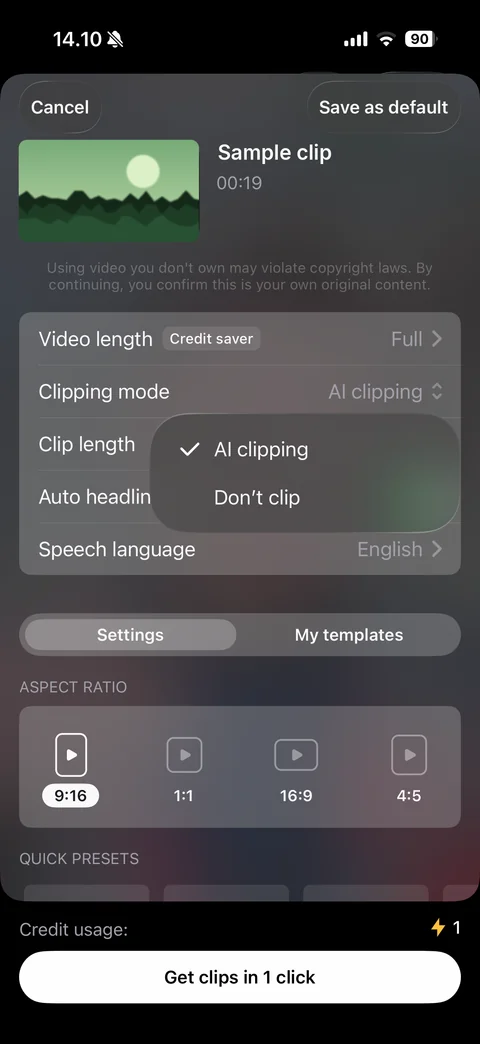
Clipping mode menu: glassy popover with AI clipping (checked) and Don't clip options over the clip settings card (sample thumbnail)
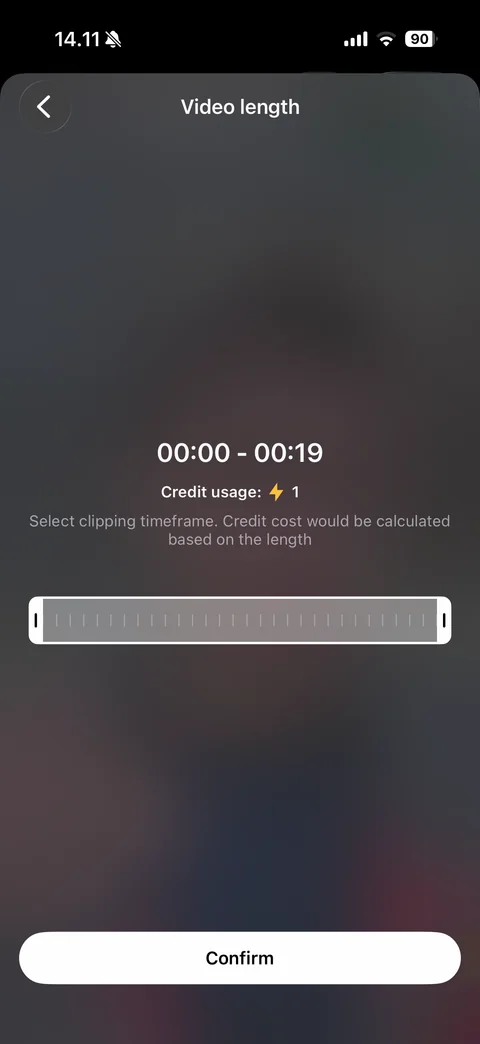
Video length trimmer: back, title, timeframe 00:00 - 00:19, Credit usage 1 with lightning, explanation, white-bordered range bar with tick marks and drag handles, Confirm button, heavily blurred background
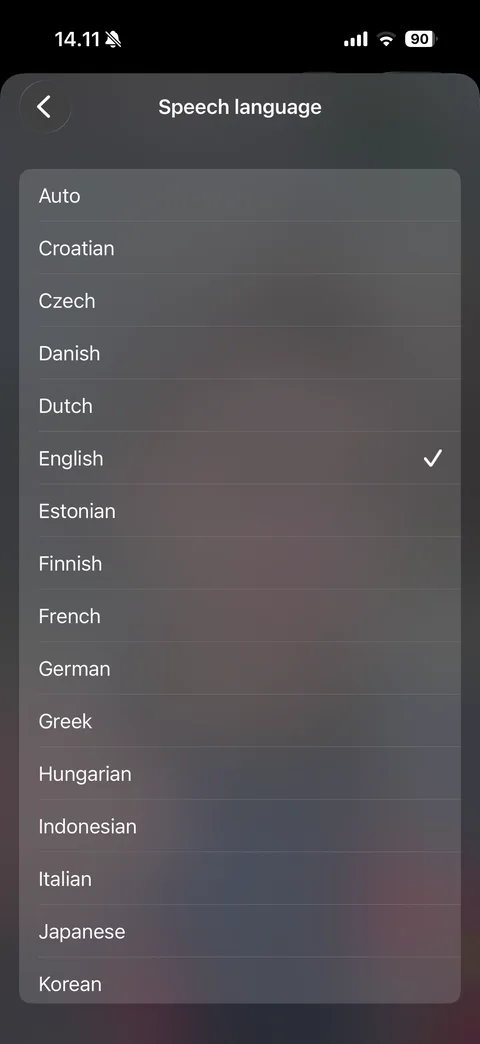
Speech language list: back, title, glassy list of languages (Auto, Croatian, Czech, Danish, Dutch, English checked, Estonian, Finnish, French, German, Greek, Hungarian, Indonesian, Italian, Japanese, Korean) over blurred background
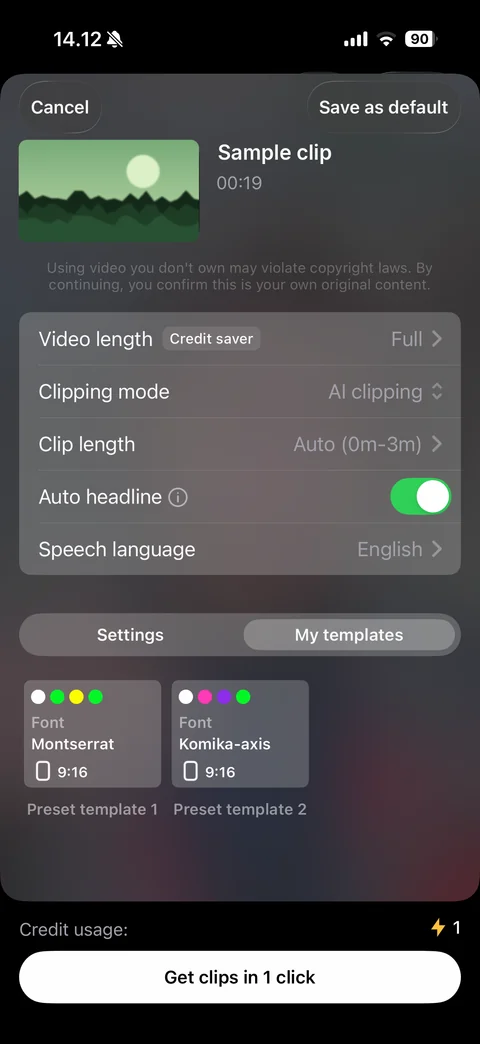
Clip settings My templates tab: segmented control with My templates active, two preset template cards with color dot palettes, font names (Montserrat, Komika-axis) and 9:16 ratio, labels Preset template 1 and 2, Get clips button (sample thumbnail)
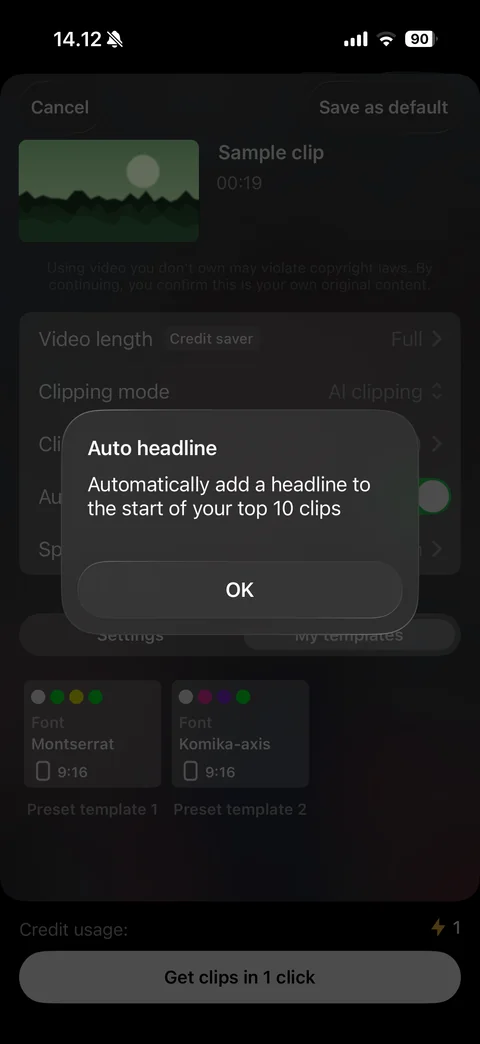
Auto headline info alert: dark glassy dialog with title and explanation Automatically add a headline to the start of your top 10 clips, OK button, over the dimmed clip settings (sample thumbnail)
OpusClip account (4 screens)
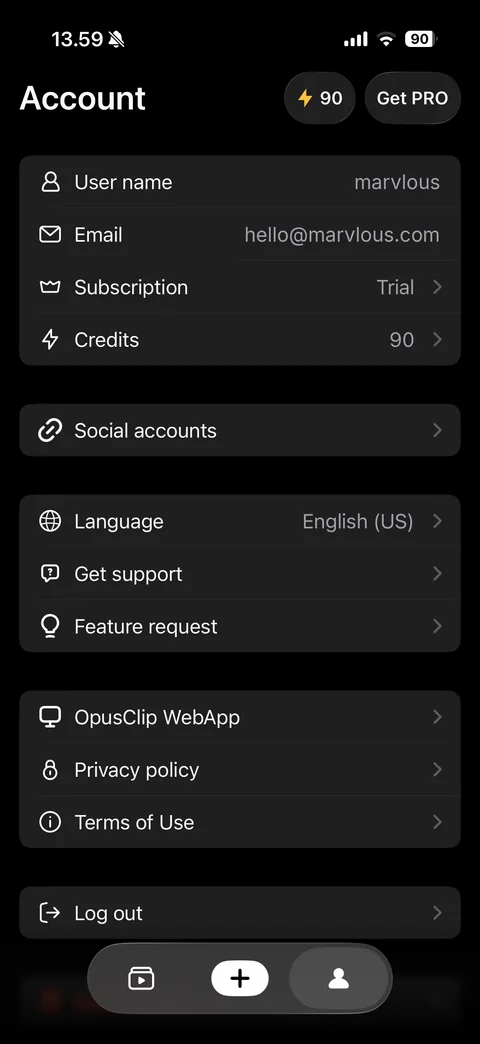
Account tab (dark): Account title, credits pill 90 and Get PRO, card with User name and Email (sample), Subscription Trial and Credits 90 rows with line icons, Social accounts row, Language English (US), Get support, Feature request, OpusClip WebApp, Privacy policy, Terms of Use, Log out, floating tab bar
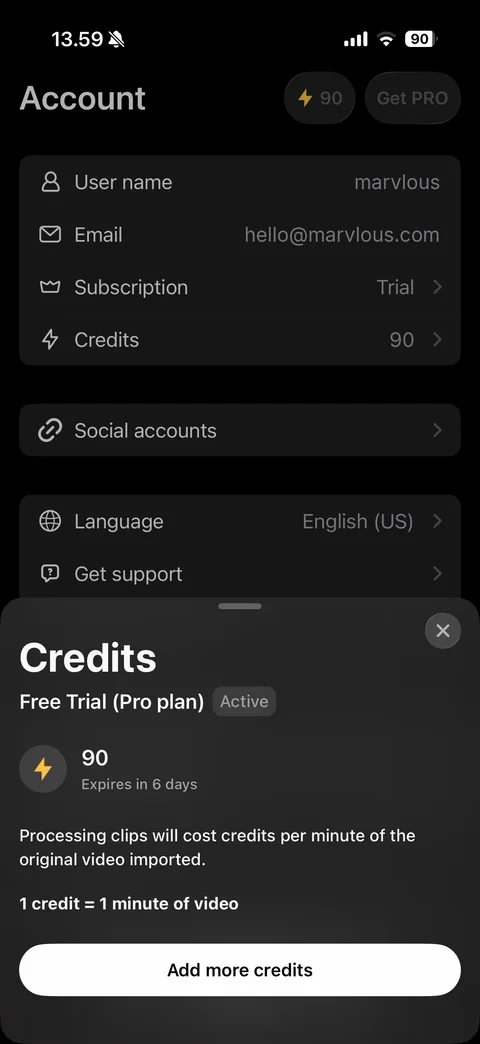
Credits bottom sheet: close, large Credits title, Free Trial (Pro plan) with Active pill, lightning badge with 90 credits and Expires in 6 days, explanation of credit cost, bold 1 credit = 1 minute of video, white Add more credits button; dimmed account list behind (sample email)
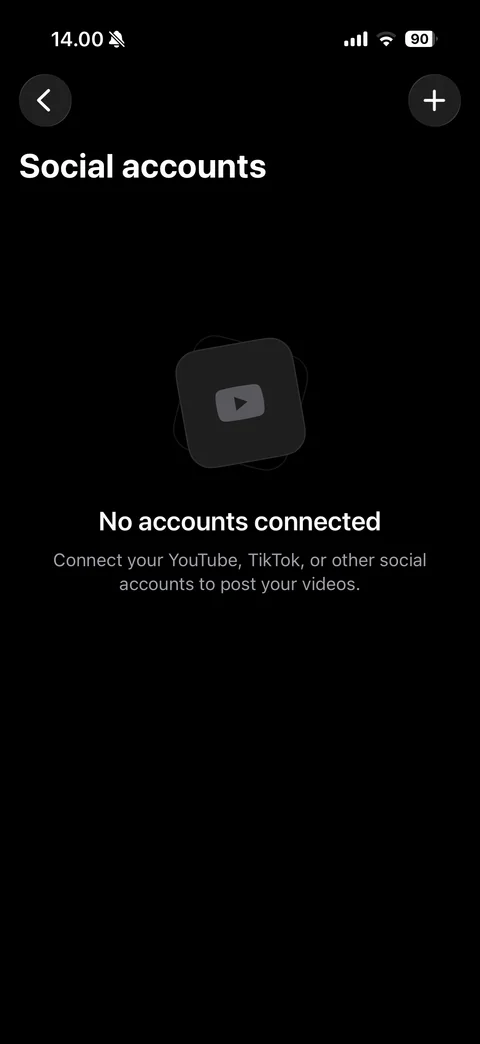
Social accounts empty state: back and plus buttons, large title, stacked YouTube play tile icon, No accounts connected, Connect your YouTube, TikTok, or other social accounts to post your videos.
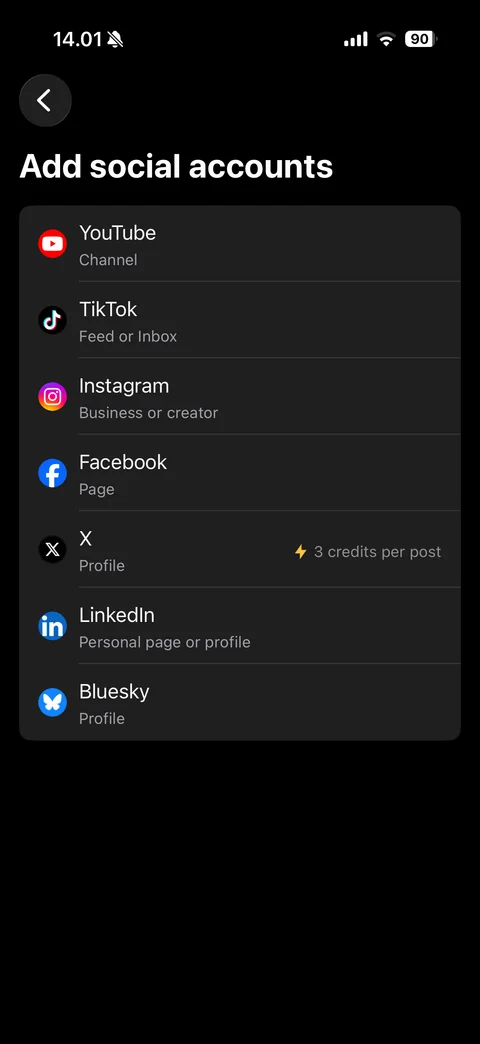
Add social accounts list: back, large title, grouped list with brand logos and subtitles (YouTube Channel, TikTok Feed or Inbox, Instagram Business or creator, Facebook Page, X Profile with lightning 3 credits per post, LinkedIn Personal page or profile, Bluesky Profile)
OpusClip support (4 screens)
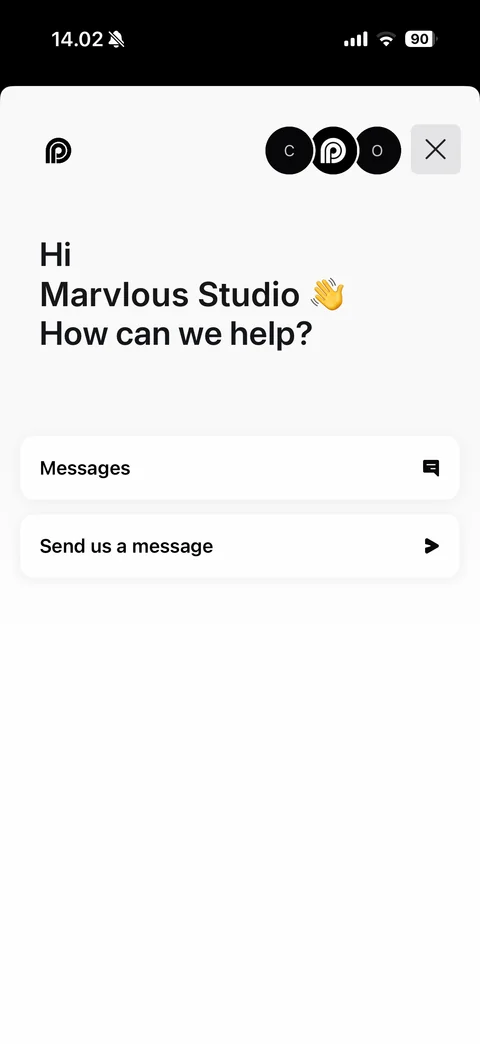
Support messenger home: OpusClip logo, team avatar stack and close, large greeting Hi Marvlous Studio with waving hand emoji, How can we help?, cards Messages with chat icon and Send us a message with arrow
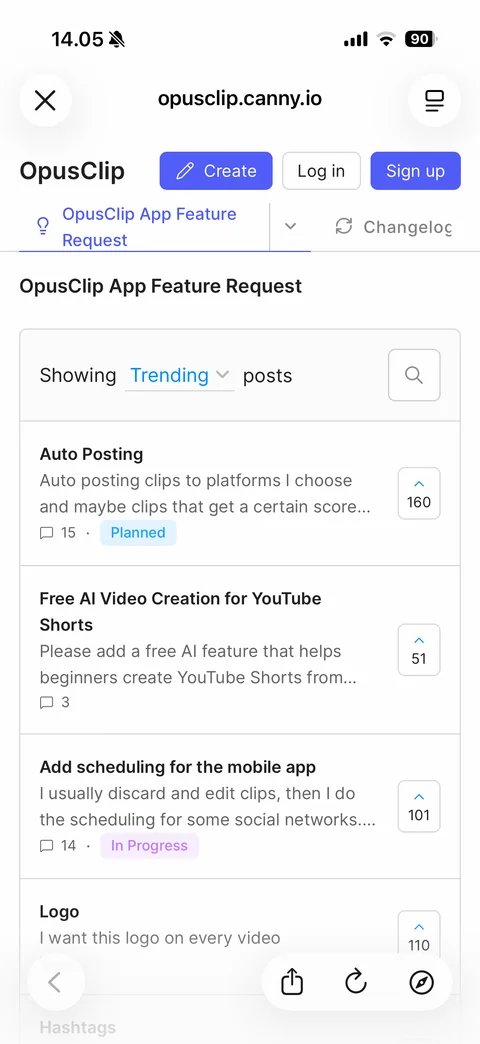
Feature request board in in-app browser (opusclip.canny.io): close and reader buttons, OpusClip header with Create, Log in and Sign up, OpusClip App Feature Request tab and Changelog, Showing Trending posts selector with search, feature posts with titles, excerpts, comment counts, Planned and In Progress status tags and upvote boxes
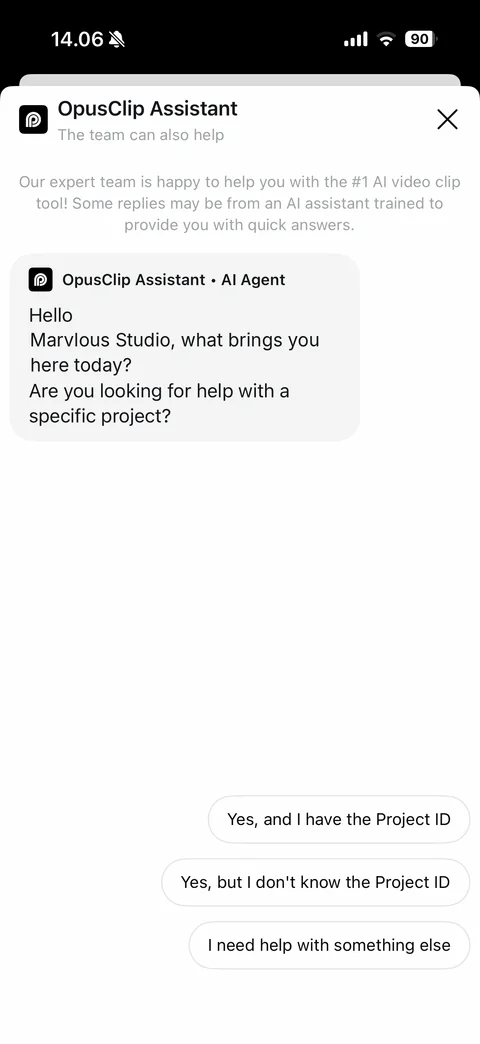
OpusClip Assistant AI chat: header with logo, title and The team can also help, close, disclaimer that replies may come from an AI assistant, grey AI Agent message bubble greeting the user by name (sample) and asking about a project, quick reply chips (Yes, and I have the Project ID; Yes, but I don't know the Project ID; I need help with something else)
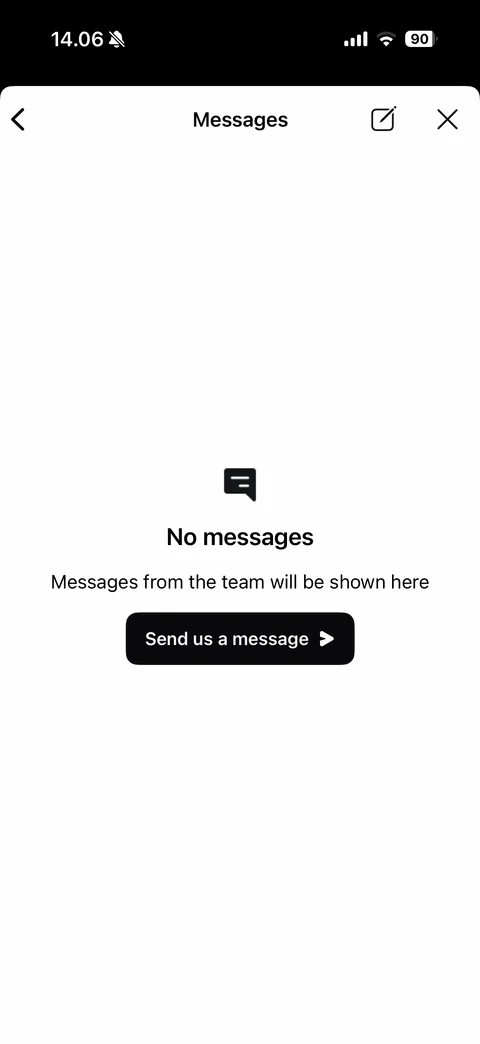
Support Messages empty state: back, title, compose and close, chat icon, No messages, Messages from the team will be shown here, black Send us a message button with arrow