Grammarly app design: 46 real screens in 6 flows
Write, dictate, edit, improve. Category: Productivity. By Superhuman Platform Inc.
Captured on iPhone and updated November 2026. Each screen has a short note on what it shows and why it matters for growth.
Grammarly onboarding (15 screens)
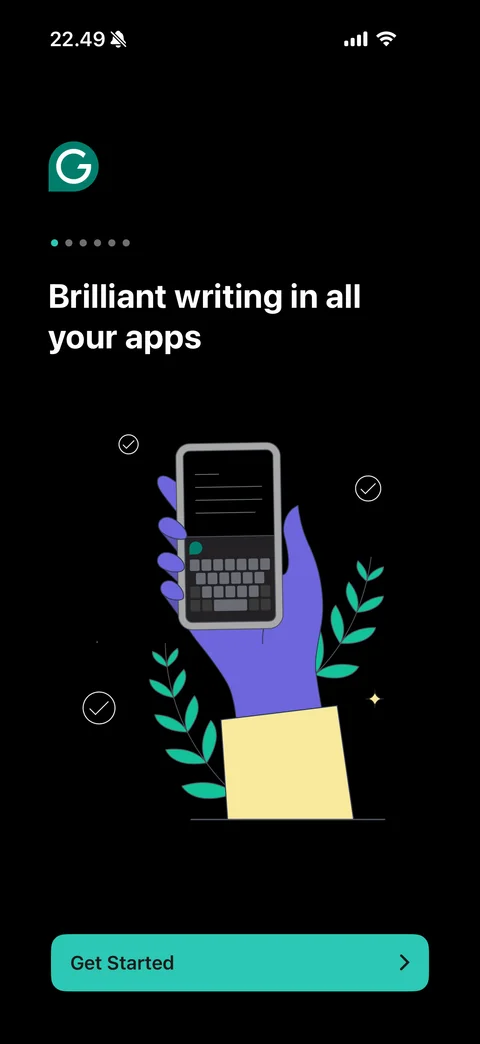
Welcome slide 1 (dark): Grammarly G logo, page dots (first active), Brilliant writing in all your apps headline, illustration of purple hand holding phone with keyboard, check marks and green leaves, teal Get Started button with chevron
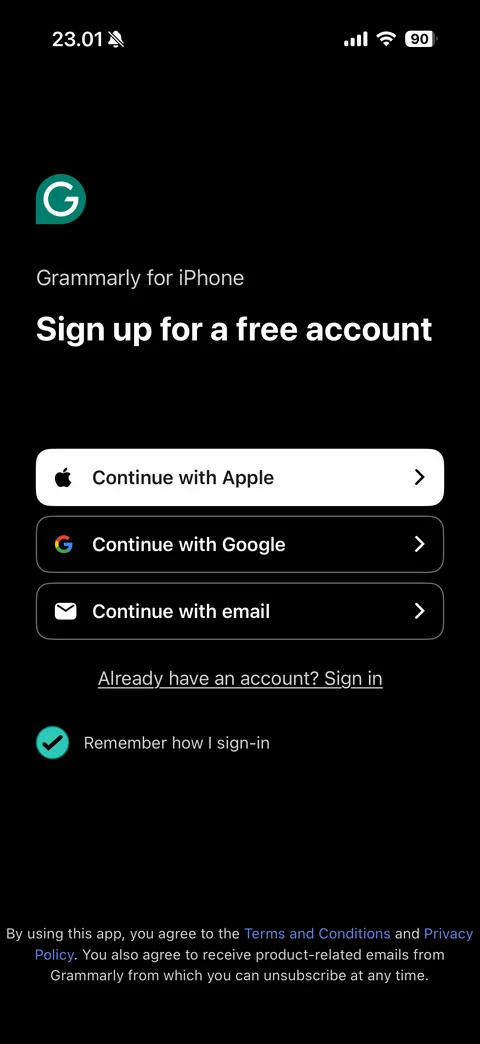
Sign up screen (dark): G logo, Grammarly for iPhone label, Sign up for a free account headline, white Continue with Apple and outlined Google and email buttons with chevrons, Already have an account Sign in link, Remember how I sign-in teal checkbox, terms and email consent footer
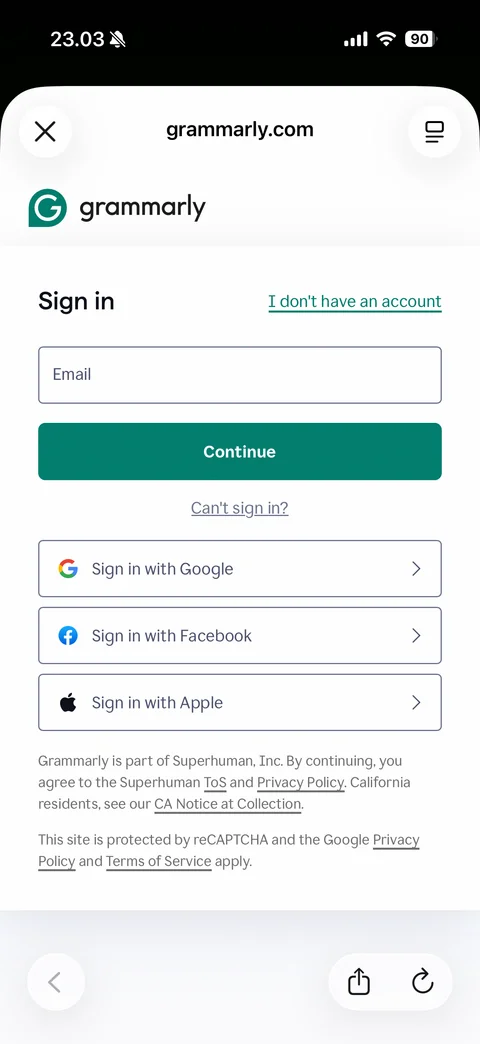
Web sign in sheet (in-app browser): close, grammarly.com address and reader icon, grammarly logo, Sign in title with I don't have an account link, Email field, green Continue, Can't sign in link, outlined Sign in with Google, Facebook and Apple, Superhuman terms and reCAPTCHA notes, browser back, share and reload
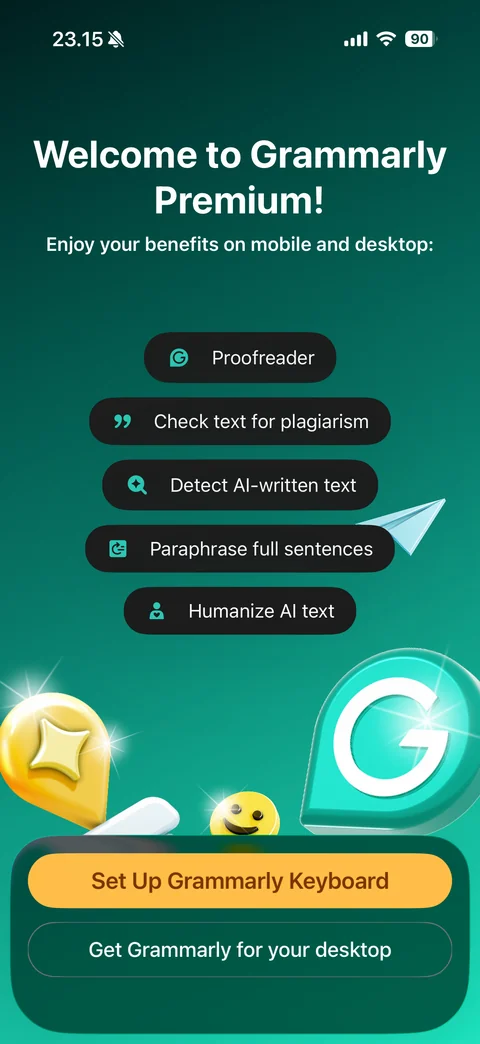
Welcome to Grammarly Premium: deep green gradient, headline and subtitle, dark pill list of features with icons (Proofreader, Check text for plagiarism, Detect AI-written text, Paraphrase full sentences, Humanize AI text), glossy 3D G logo, star badge and smiley with paper plane, yellow Set Up Grammarly Keyboard and outlined Get Grammarly for your desktop
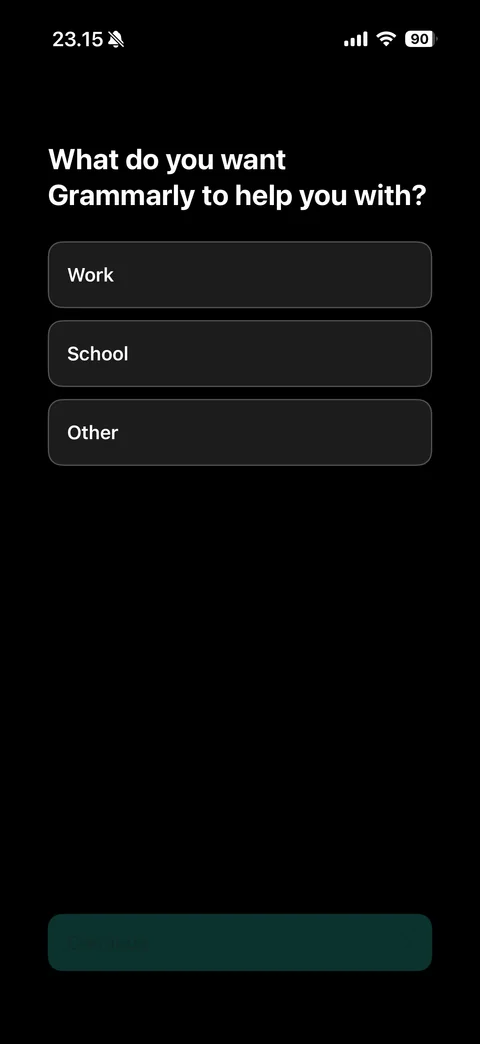
Use case question (dark): What do you want Grammarly to help you with, option cards (Work, School, Other), disabled teal Continue
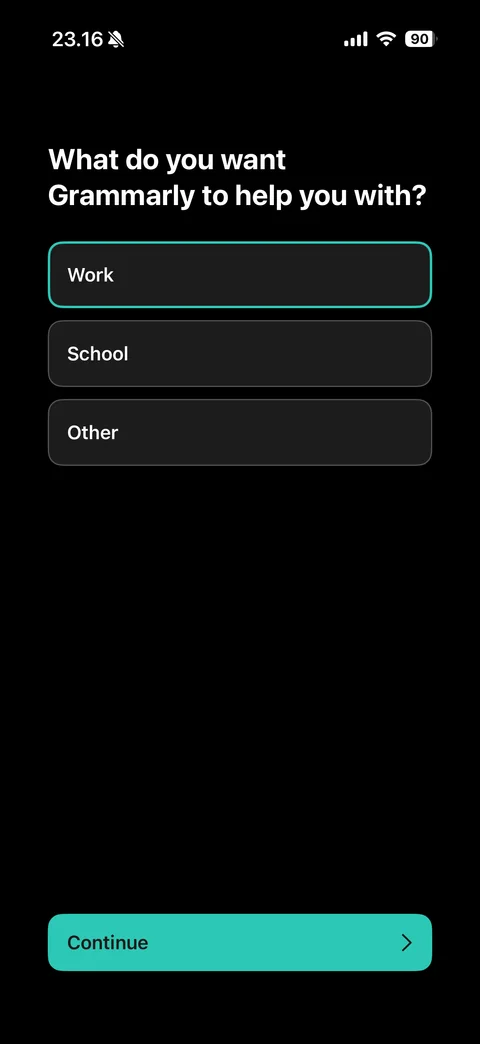
Use case selected: Work card with teal outline, teal Continue active with chevron
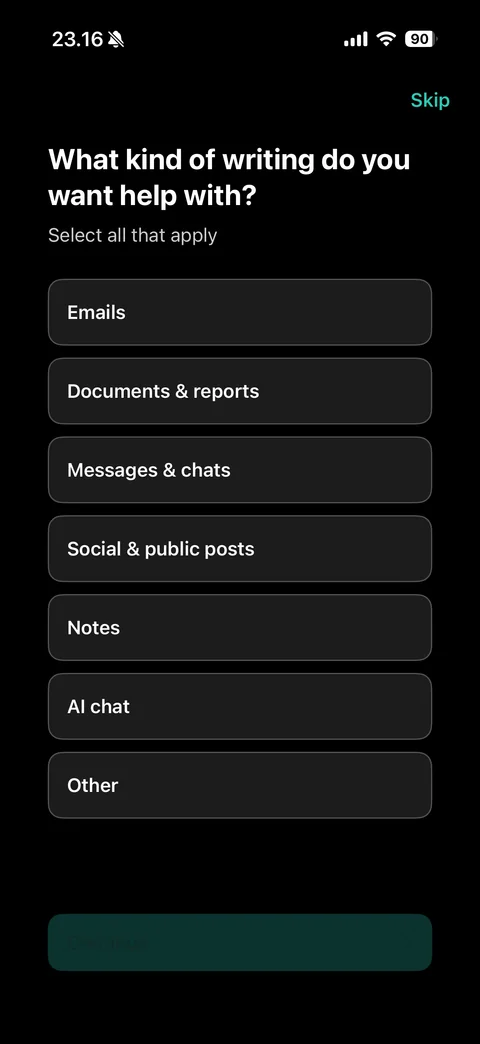
Writing type question (dark): Skip, What kind of writing do you want help with, Select all that apply, multi-select cards (Emails, Documents and reports, Messages and chats, Social and public posts, Notes, AI chat, Other), disabled Continue
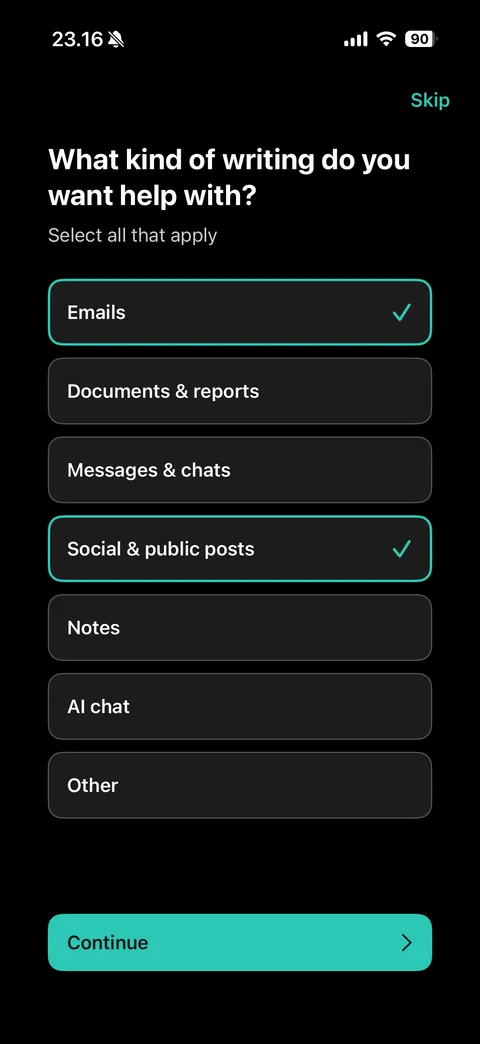
Writing types selected: Emails and Social and public posts cards with teal outline and check marks, Continue active
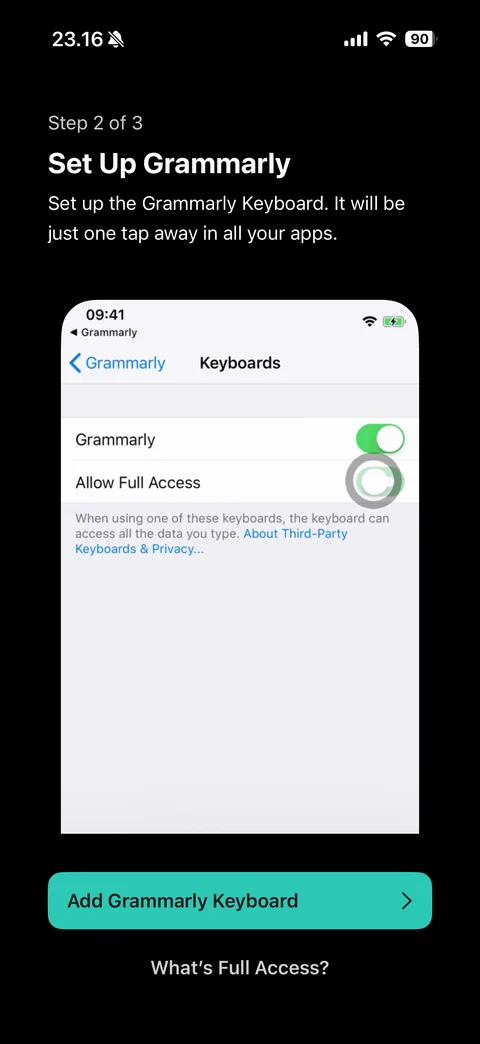
Keyboard setup step 2 of 3 (dark): Set Up Grammarly headline, explanation, light iOS Settings mockup with Keyboards page showing Grammarly and Allow Full Access toggles on, teal Add Grammarly Keyboard button, What's Full Access link
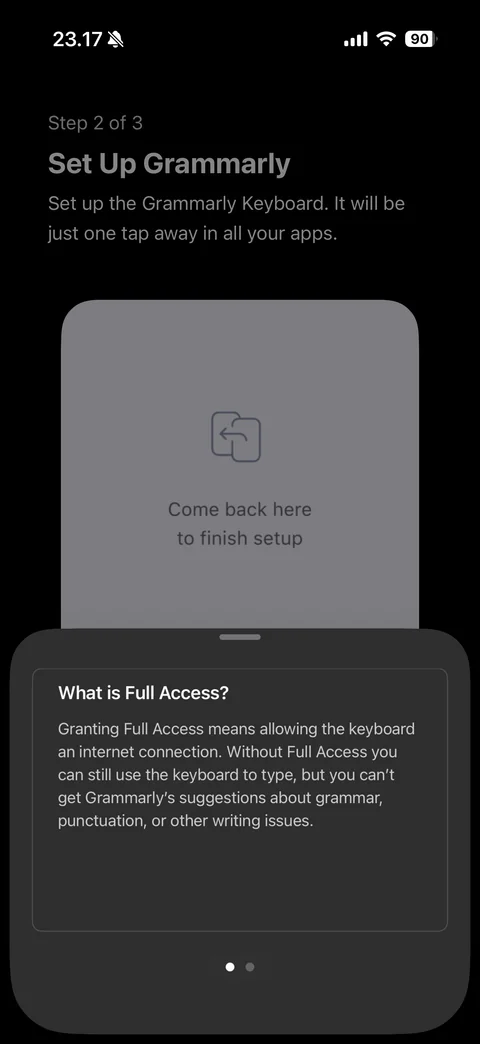
What is Full Access sheet: dimmed keyboard setup step with animated Settings mockup behind, bordered card explaining Full Access gives the keyboard an internet connection and is needed for suggestions, page dots
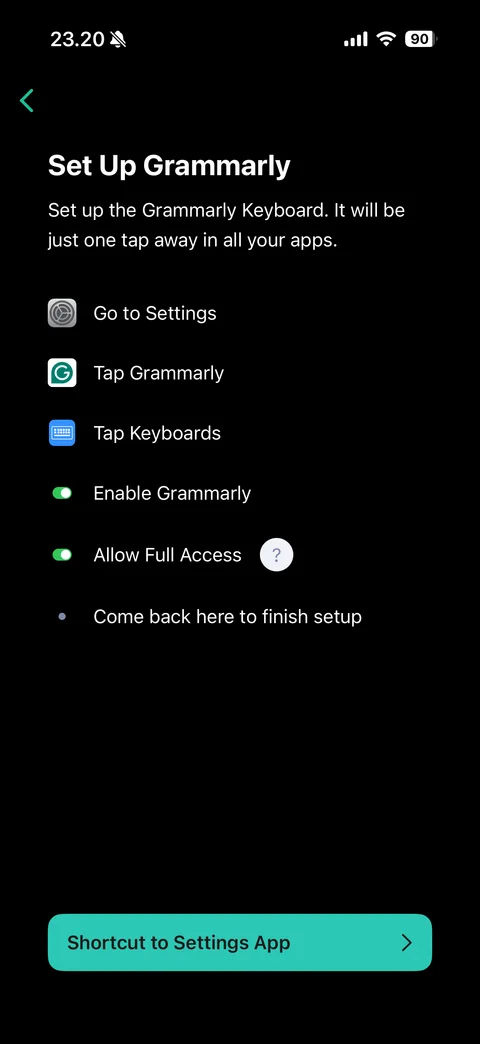
Keyboard setup instructions (Having trouble): back, Set Up Grammarly headline, numbered checklist with real iOS icons (Go to Settings, Tap Grammarly, Tap Keyboards, Enable Grammarly and Allow Full Access with toggle icons and help bubble, Come back here to finish setup), teal Shortcut to Settings App
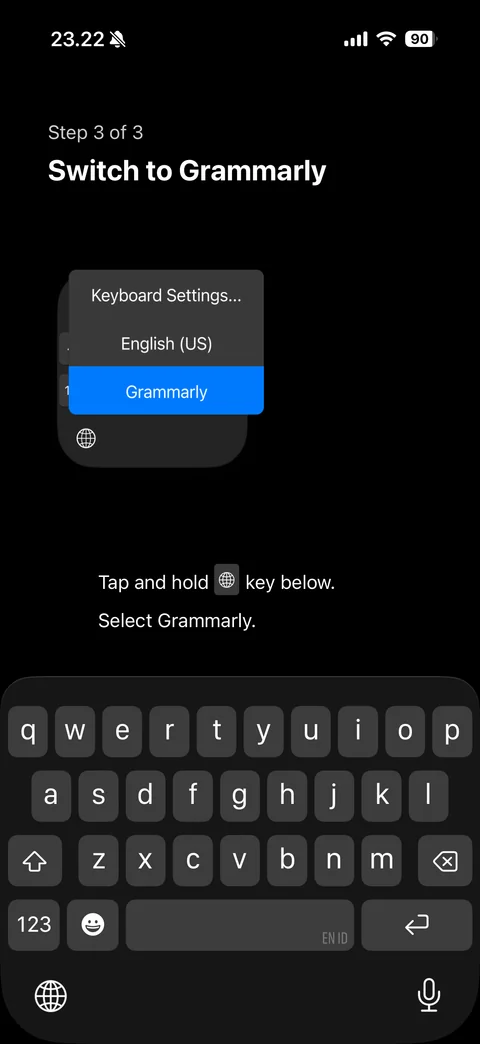
Keyboard step 3 of 3: Switch to Grammarly headline, illustrated keyboard picker popup (Keyboard Settings, English US, Grammarly highlighted in blue) above globe key, instruction text with inline globe key icon, system keyboard open
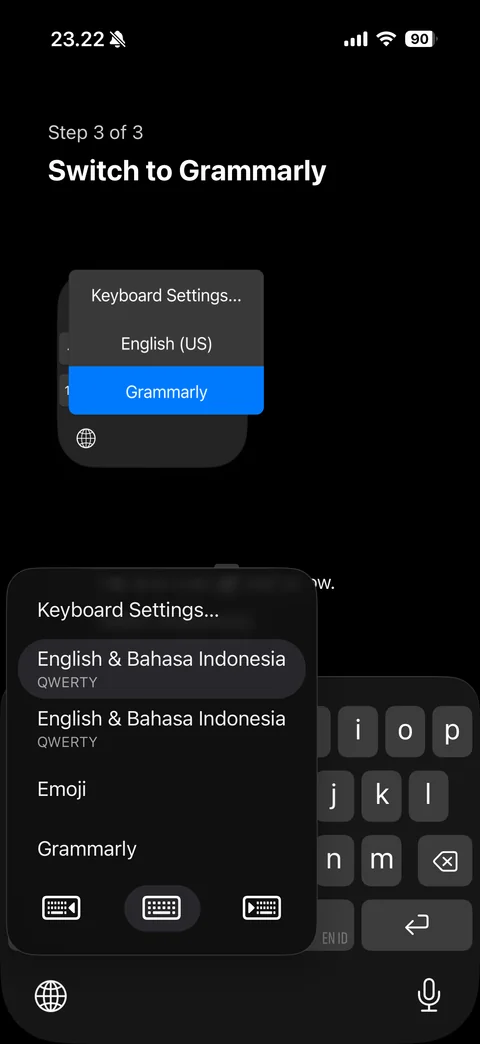
iOS keyboard switcher menu over step 3: Keyboard Settings, English and Bahasa Indonesia QWERTY layouts, Emoji, Grammarly option, one-handed keyboard position buttons
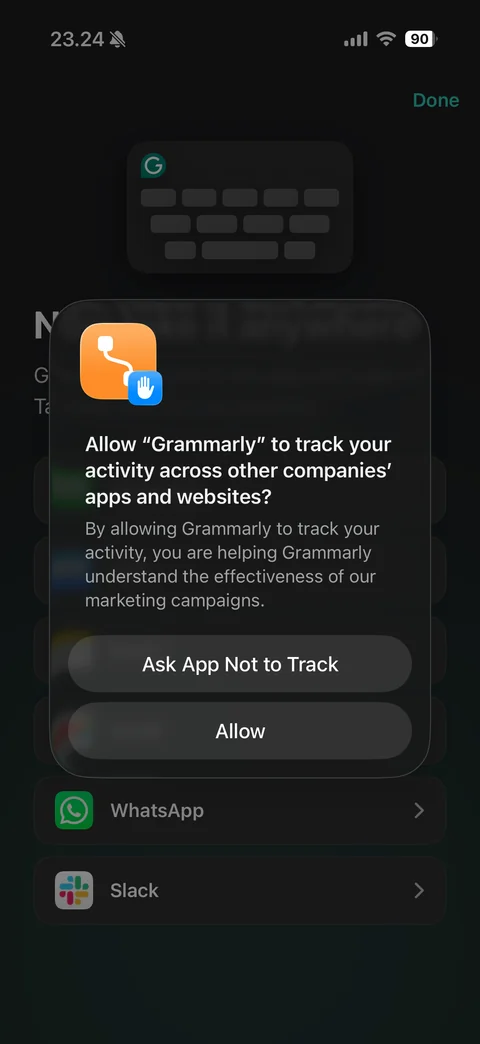
iOS App Tracking Transparency alert over dimmed Now use it anywhere screen: tracking icon, Allow Grammarly to track your activity question, marketing explanation, Ask App Not to Track and Allow
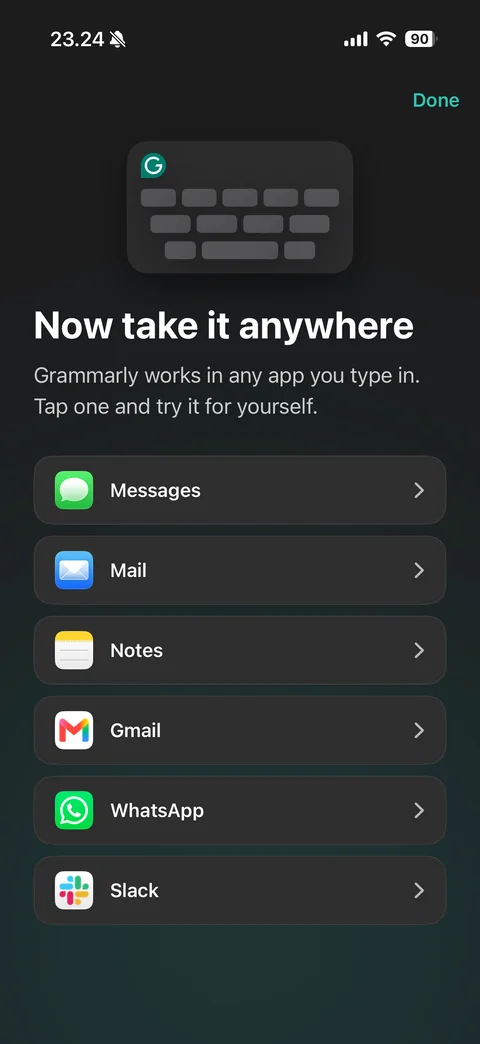
Now take it anywhere: Done, keyboard illustration with G badge, headline and subtitle, app launcher list with real app icons and chevrons (Messages, Mail, Notes, Gmail, WhatsApp, Slack)
Grammarly paywall (2 screens)
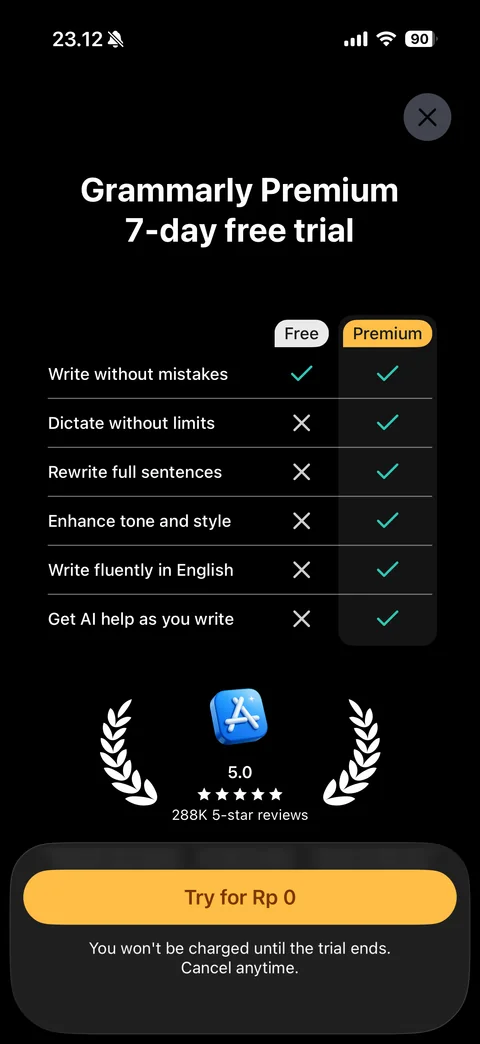
Premium trial paywall (dark): close, Grammarly Premium 7-day free trial headline, Free vs Premium comparison table with teal checks and gray crosses (write without mistakes, dictate, rewrite sentences, tone and style, fluency, AI help), highlighted Premium column with yellow label, App Store icon with laurel wreath, 5.0 stars and 288K reviews, yellow Try for Rp 0 button, no charge until trial ends note
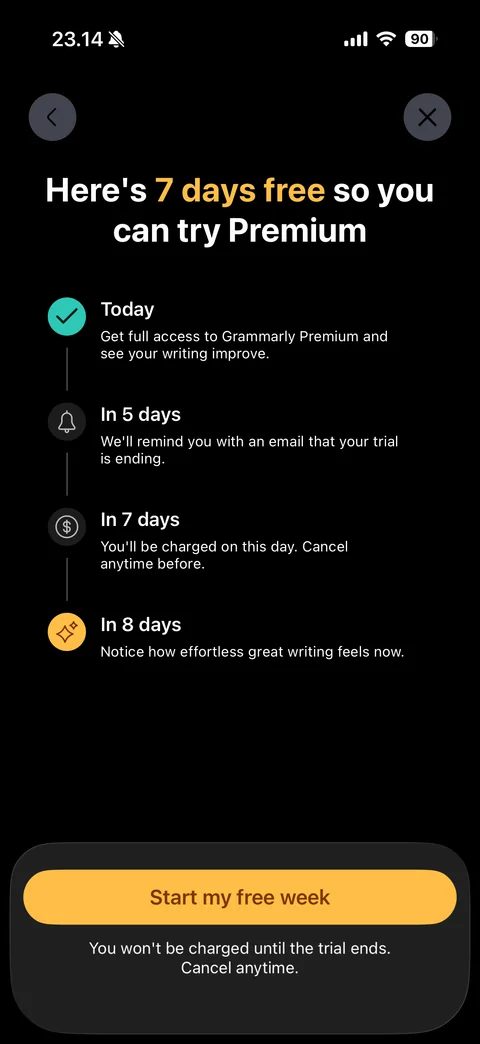
Trial timeline paywall (dark): back and close, Here's 7 days free so you can try Premium headline with yellow accent, vertical timeline with icons (Today full access, In 5 days email reminder, In 7 days charge, In 8 days effortless writing), yellow Start my free week button, cancel anytime note
Grammarly editor (12 screens)
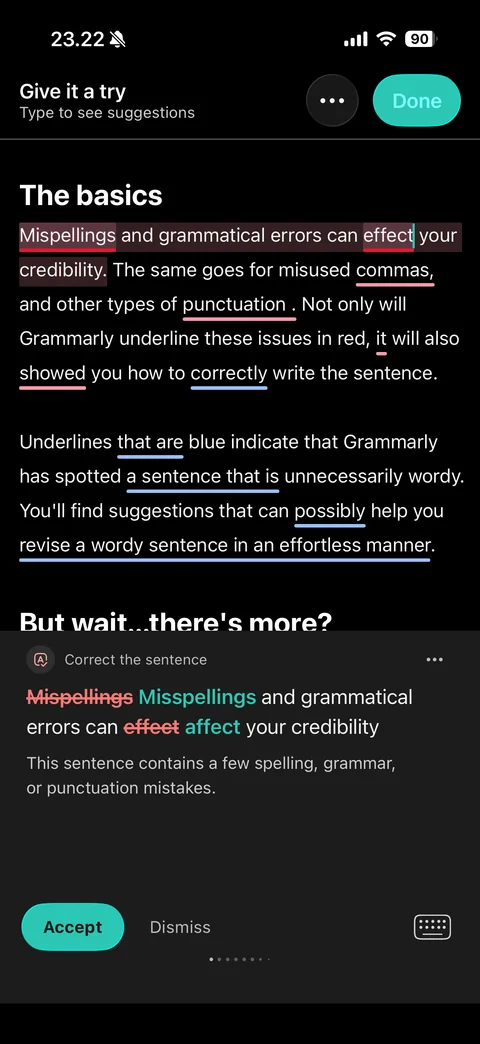
Give it a try demo document: header with more and teal Done, The basics sample text with red correctness underlines and highlighted sentence, blue clarity underlines, Grammarly keyboard panel showing Correct the sentence suggestion card with struck-through errors and teal fixes, explanation, Accept and Dismiss, keyboard toggle, card page dots
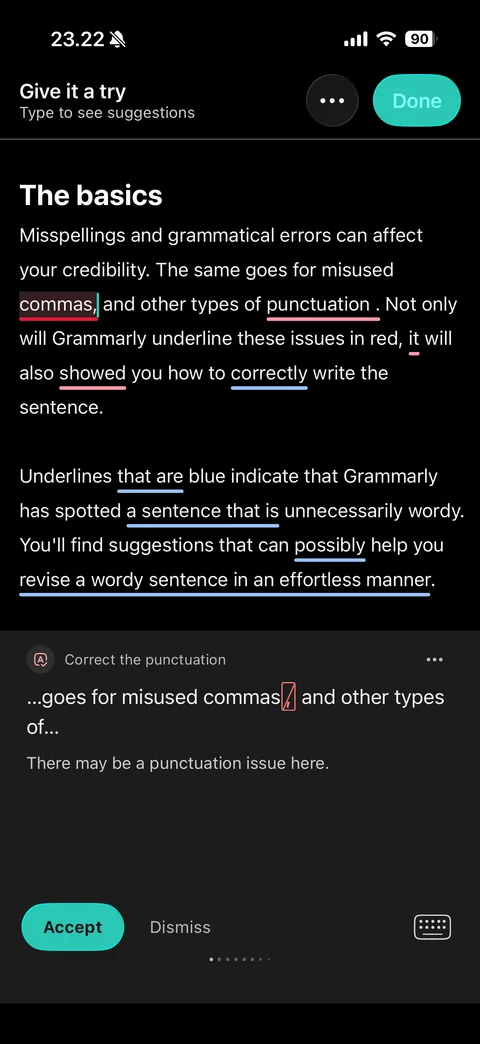
After accepting a fix: first sentence corrected with no underline, next issue highlighted (commas), Correct the punctuation card showing context snippet with red-boxed comma to remove, explanation, Accept and Dismiss
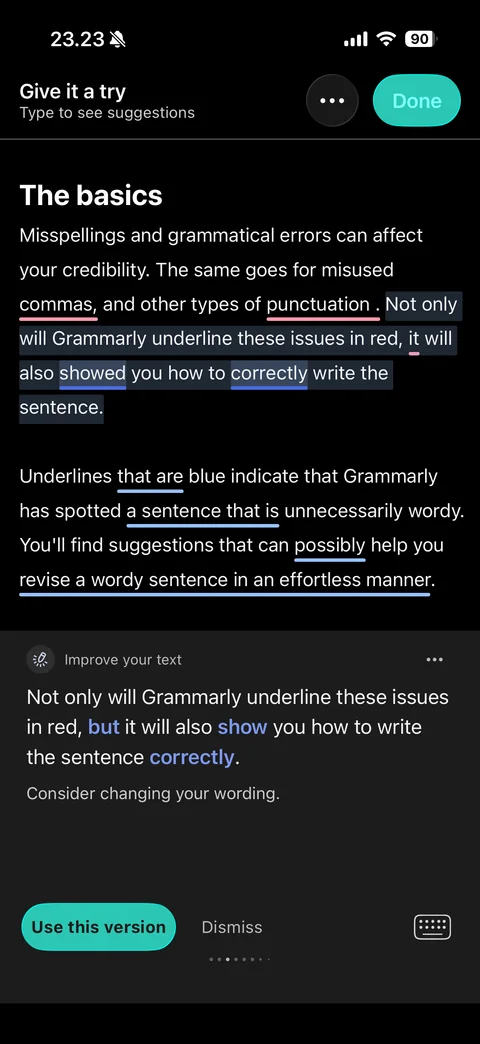
Improve your text clarity card: highlighted sentence with blue underlines in document, keyboard panel card with rewritten sentence and blue changed words, Consider changing your wording, teal Use this version and Dismiss, card page dots
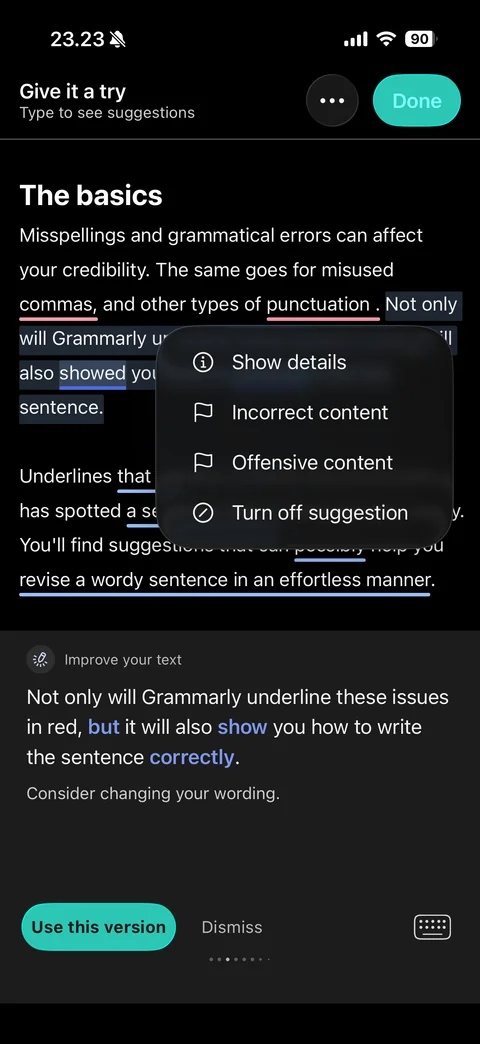
Suggestion more menu: blurred popover with Show details, Incorrect content and Offensive content flags, Turn off suggestion, over demo document
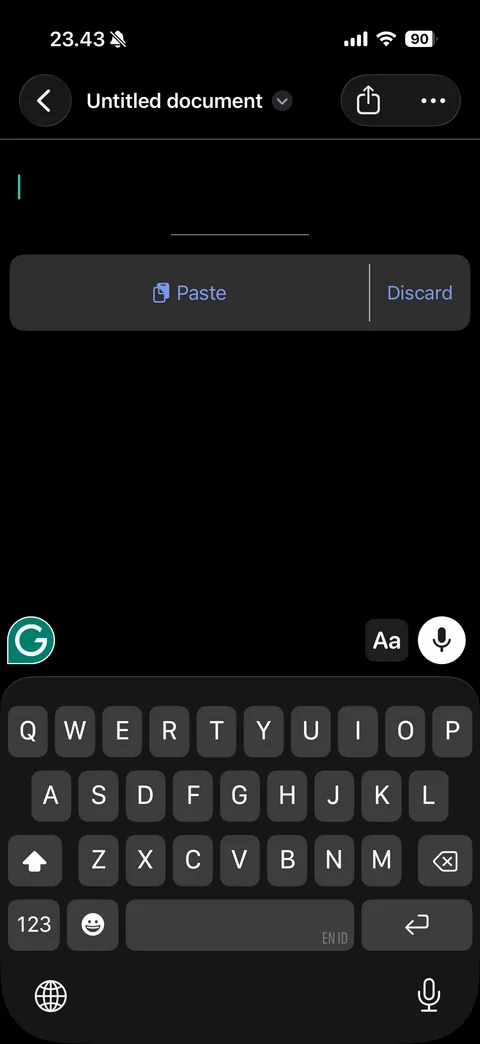
New untitled document with keyboard: back, Untitled document title with dropdown, share and more, empty page with teal cursor, Paste and Discard bar, floating Grammarly G button, Aa format and mic buttons above keyboard
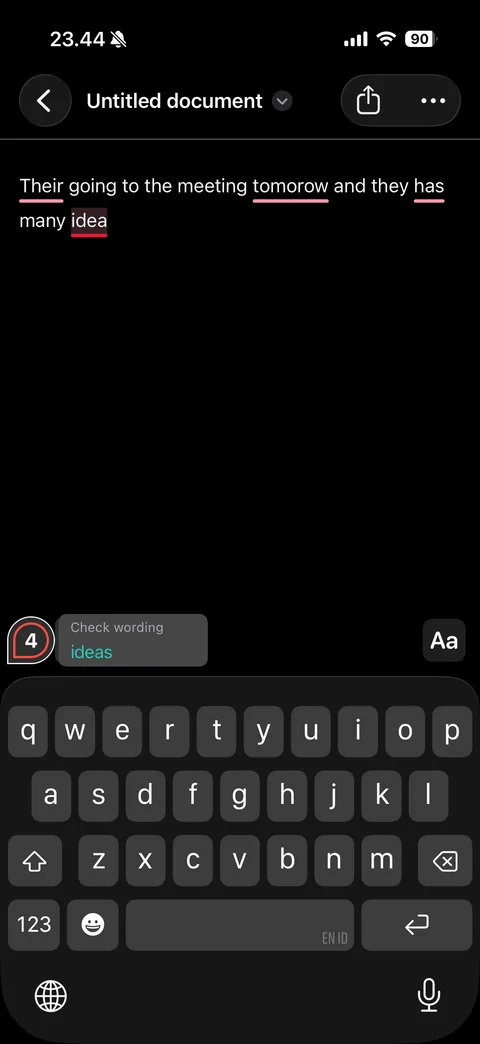
Typing with live checks: sentence with four red underlined mistakes (their, tomorow, has, idea) and highlighted current word, red G badge with count 4, inline Check wording chip suggesting ideas, Aa button, keyboard
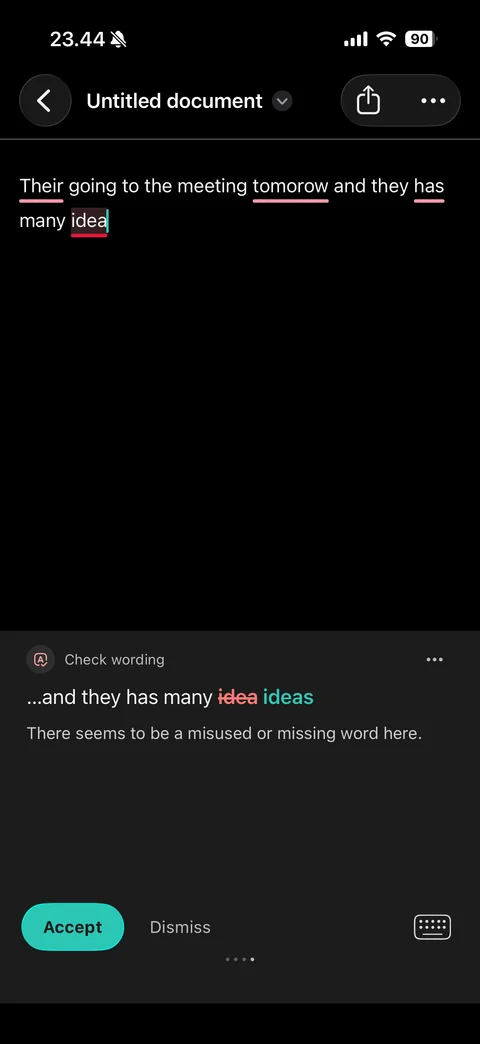
In-app suggestion panel: Check wording card with context snippet, struck-through idea and teal ideas, explanation, Accept and Dismiss, keyboard toggle, card dots
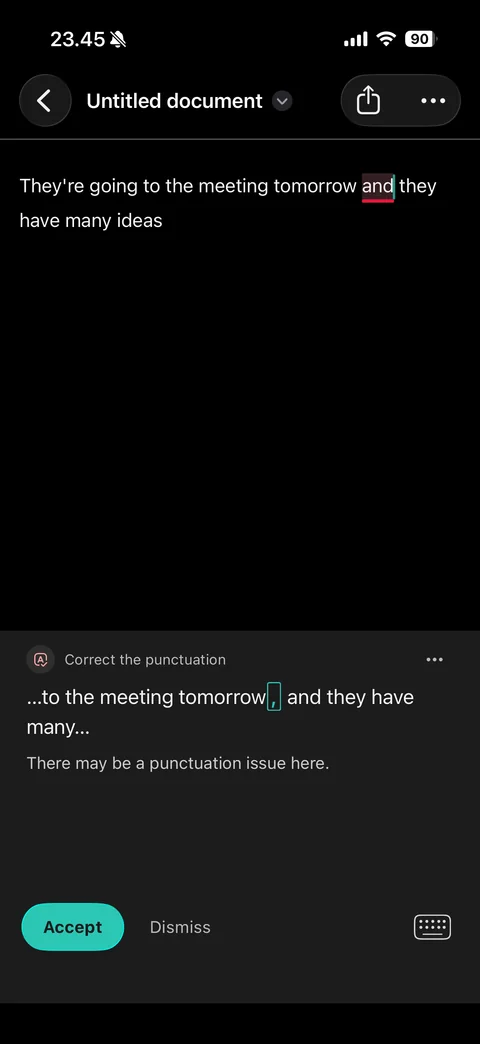
After accepting fixes: corrected sentence (They're, tomorrow, have, ideas) with one remaining underline, Correct the punctuation card suggesting an added comma in a teal box, Accept and Dismiss
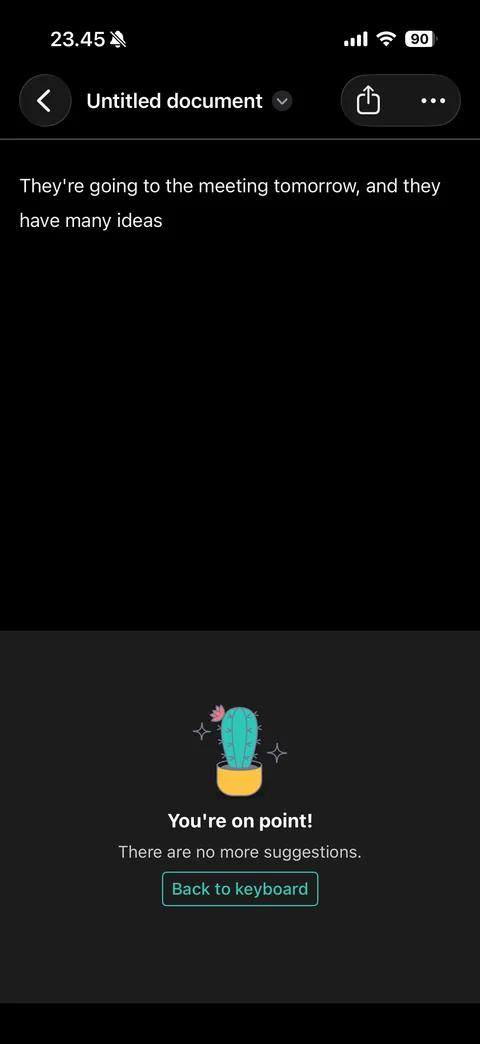
All suggestions resolved: fully corrected sentence, panel empty state with teal cactus in yellow pot and sparkles, You're on point, no more suggestions, outlined Back to keyboard
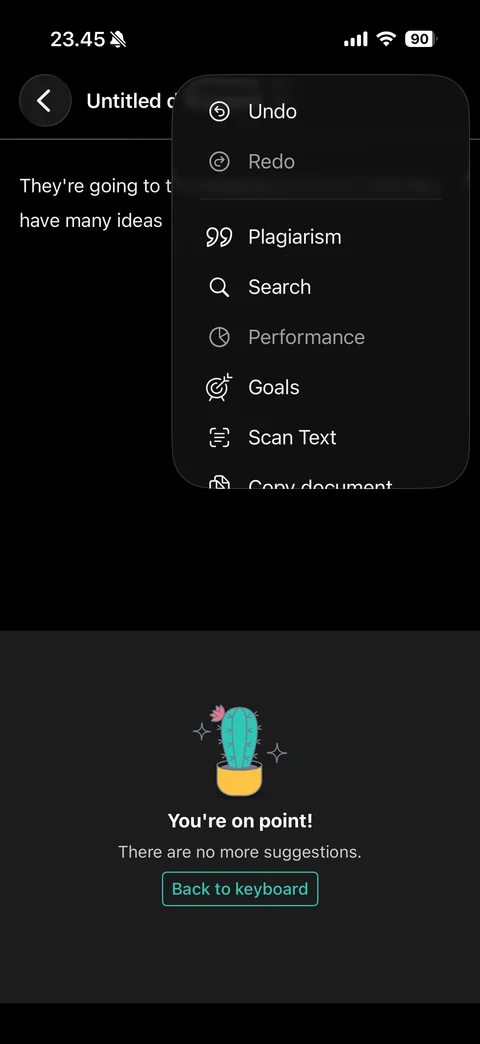
Document more menu: blurred popover with Undo, Redo (disabled), Plagiarism, Search, Performance (disabled), Goals, Scan Text, Copy document
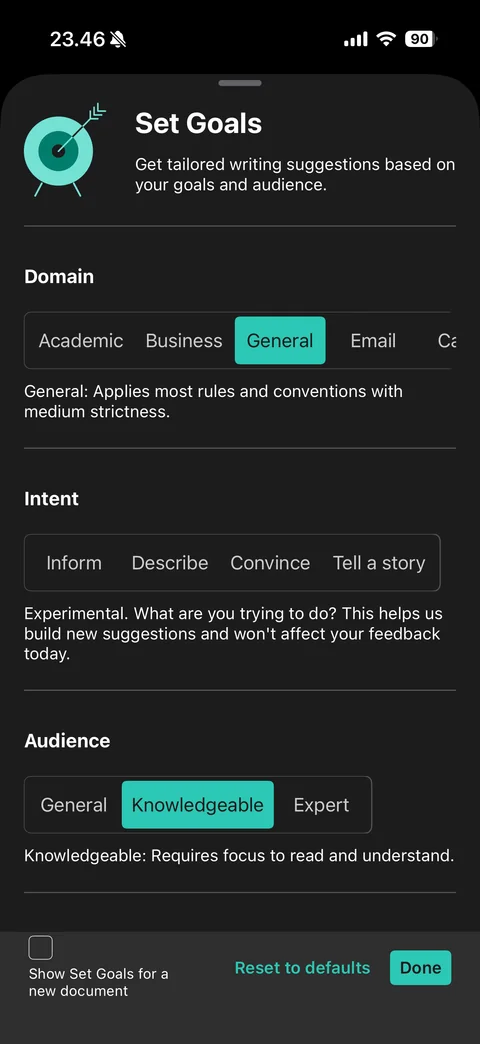
Set Goals sheet: teal target and arrow icon, title and subtitle, segmented controls for Domain (Academic, Business, General selected, Email, Casual), Intent (Inform, Describe, Convince, Tell a story), Audience (General, Knowledgeable selected, Expert) with explanations, Show Set Goals for new document checkbox, Reset to defaults and teal Done
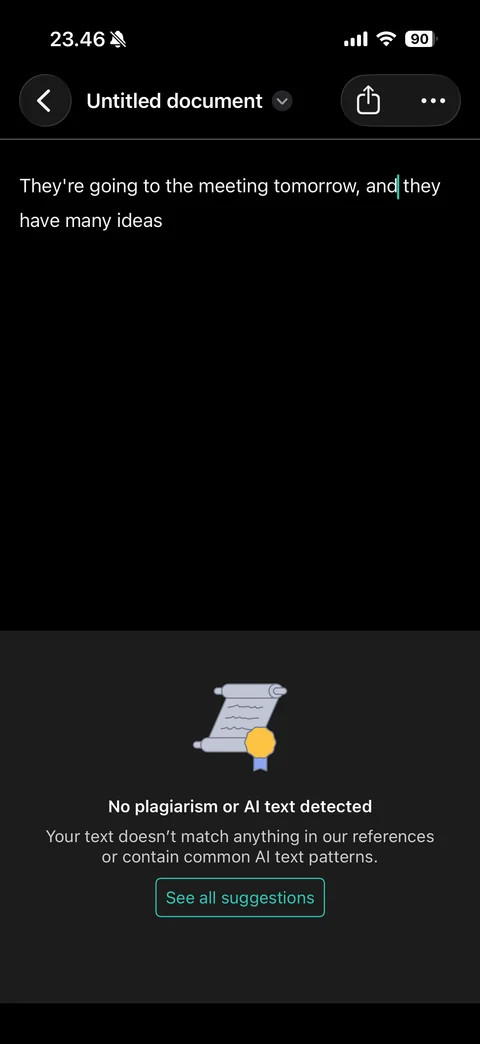
Plagiarism and AI check result: corrected document, panel with scroll and gold seal illustration, No plagiarism or AI text detected, explanation, outlined See all suggestions
Grammarly home (3 screens)
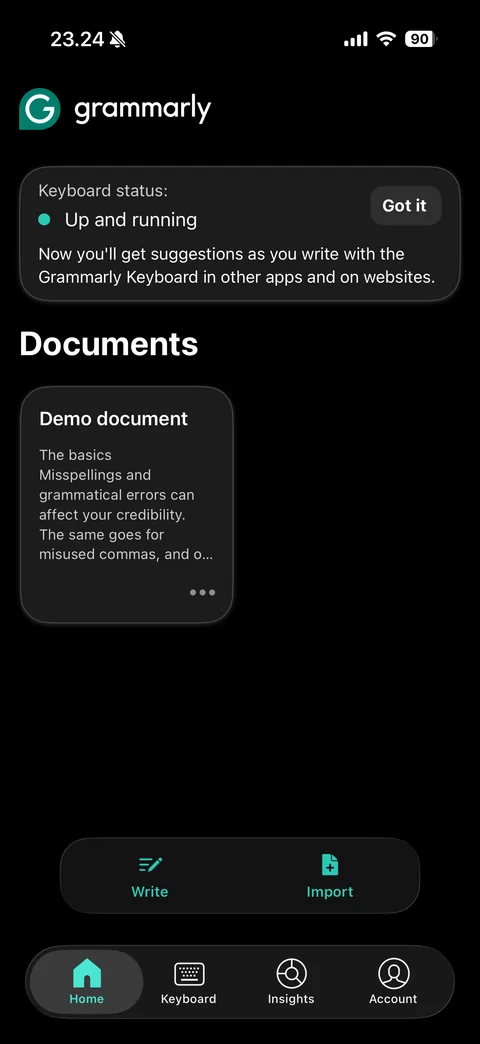
Home (dark): grammarly logo, Keyboard status card with teal dot Up and running and Got it, Documents section with Demo document card preview and more dots, floating Write and Import actions, tab bar (Home, Keyboard, Insights, Account)
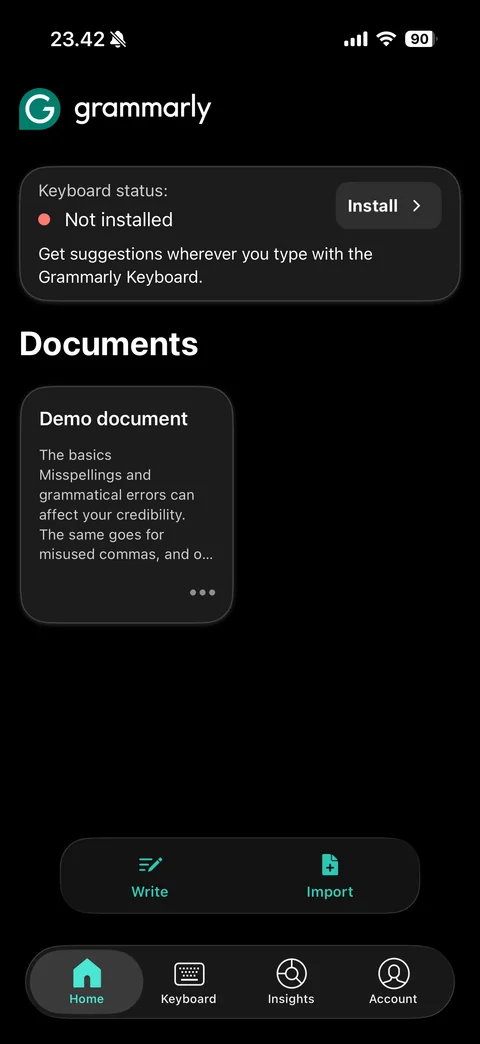
Home with keyboard not installed: Keyboard status card with red dot Not installed and Install button, Documents with Demo document card, Write and Import actions, tab bar
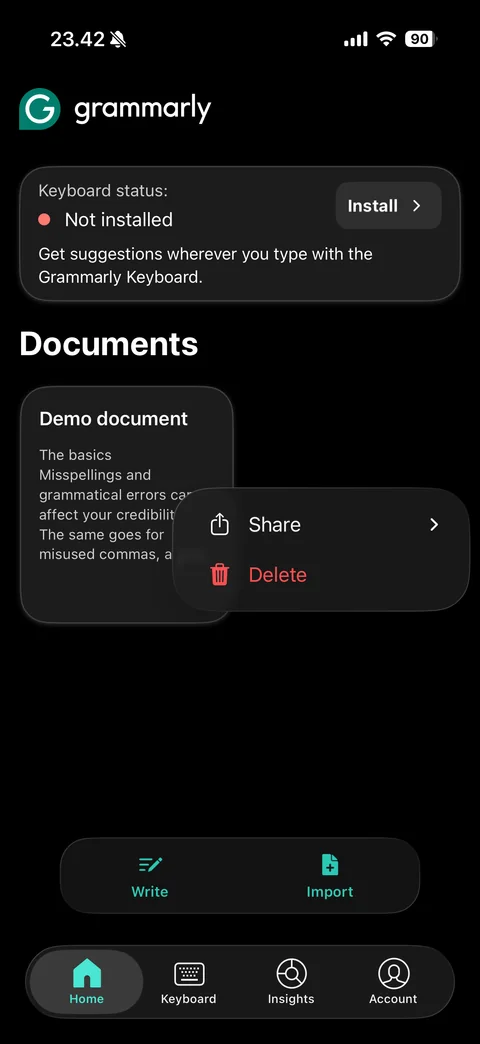
Document card menu: popover with Share (submenu chevron) and red Delete with trash icon
Grammarly settings (13 screens)
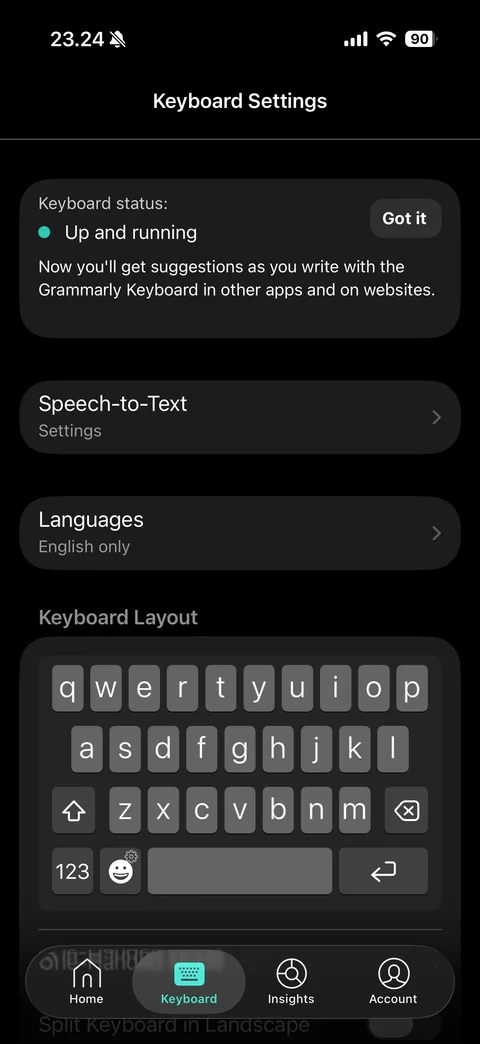
Keyboard Settings tab: keyboard status card Up and running, Speech-to-Text settings row, Languages English only row, Keyboard Layout section with live QWERTY keyboard preview, Split keyboard in landscape option below
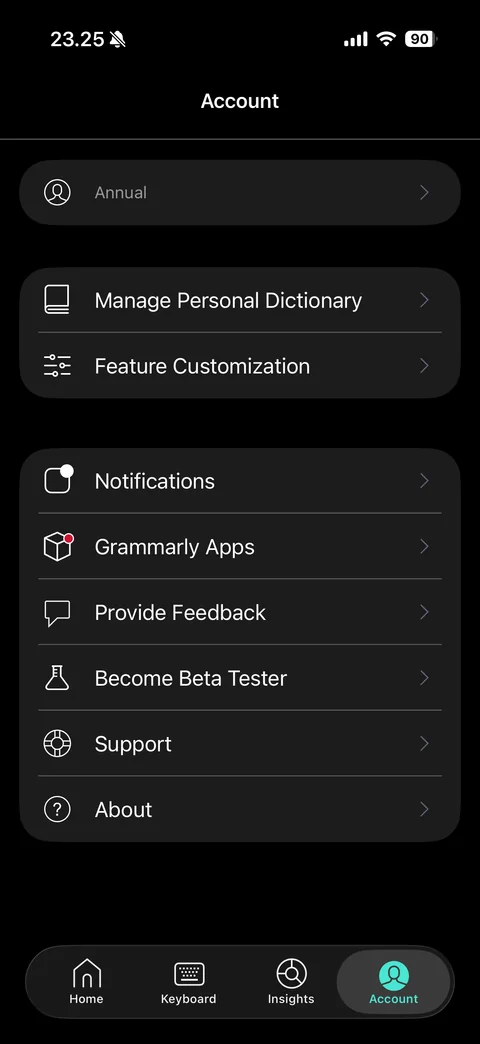
Account tab: plan row with avatar icon (Annual), Manage Personal Dictionary, Feature Customization, Notifications with dot, Grammarly Apps with red dot, Provide Feedback, Become Beta Tester, Support, About
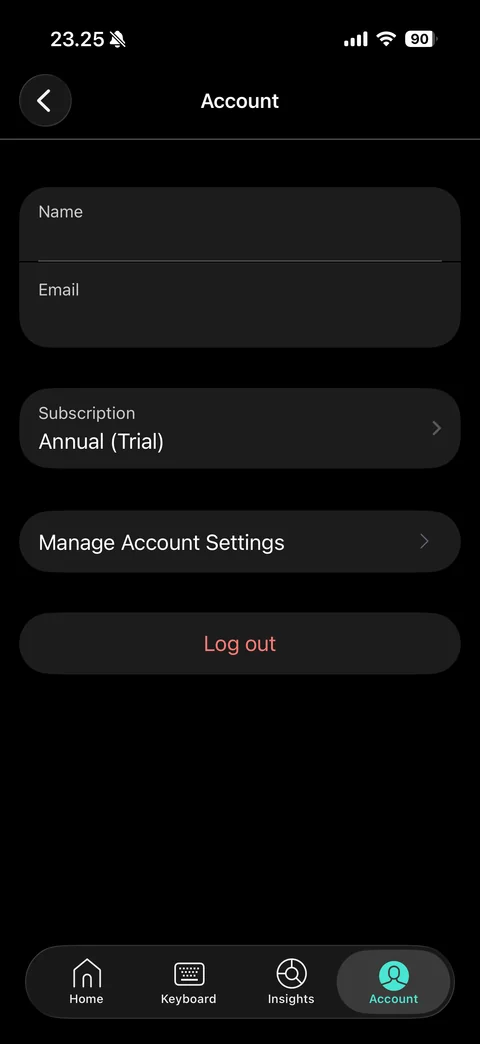
Account details: back, card with empty Name and Email (covered), Subscription row Annual (Trial) with chevron, Manage Account Settings, red Log out
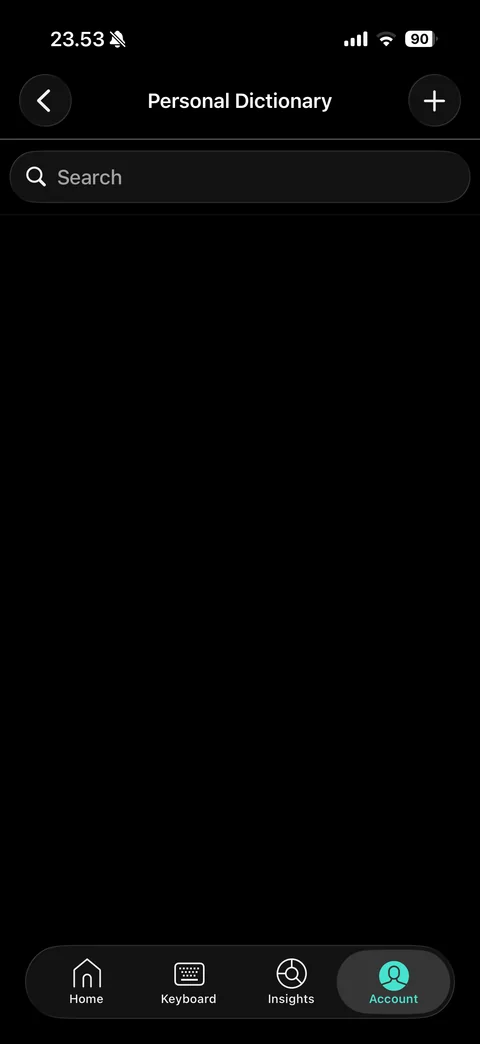
Personal Dictionary: back, title, plus button to add a word, search field, empty list
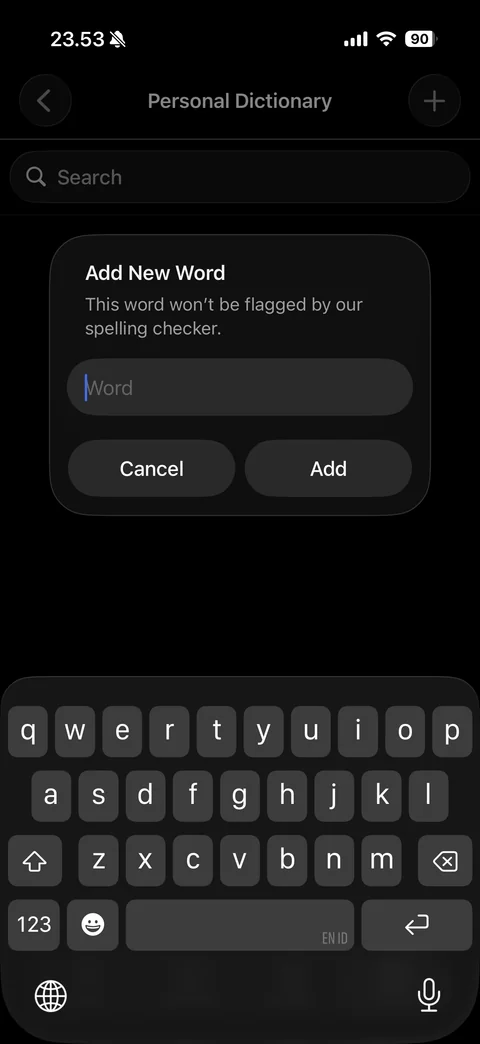
Add New Word alert over Personal Dictionary: helper text, Word field, Cancel and Add buttons, keyboard up
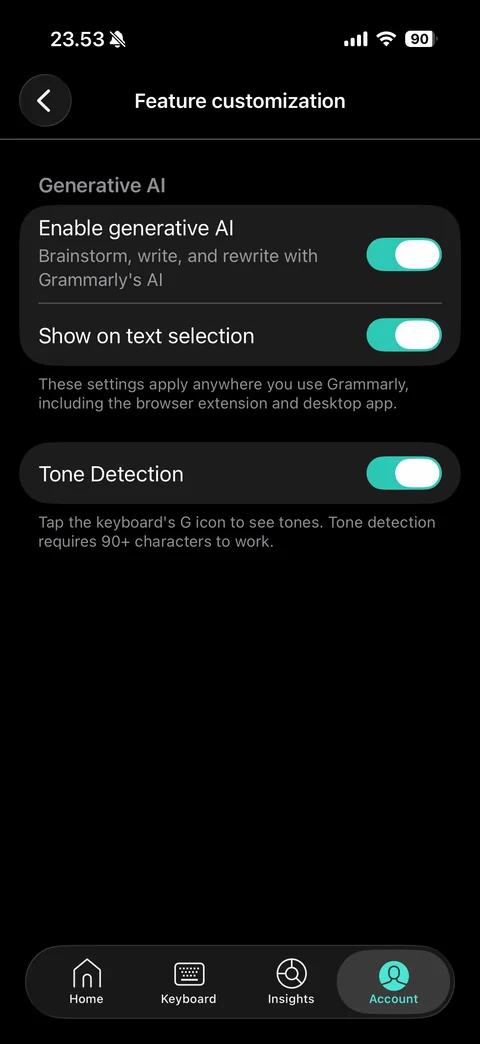
Feature customization: Generative AI section with Enable generative AI and Show on text selection toggles on, Tone Detection toggle on with helper text
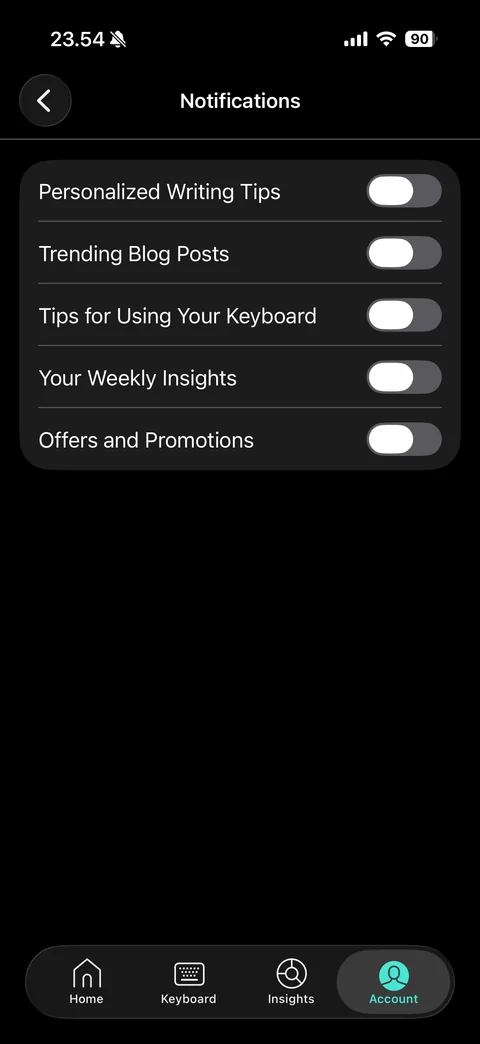
Notifications settings: five toggles all off - Personalized Writing Tips, Trending Blog Posts, Tips for Using Your Keyboard, Your Weekly Insights, Offers and Promotions
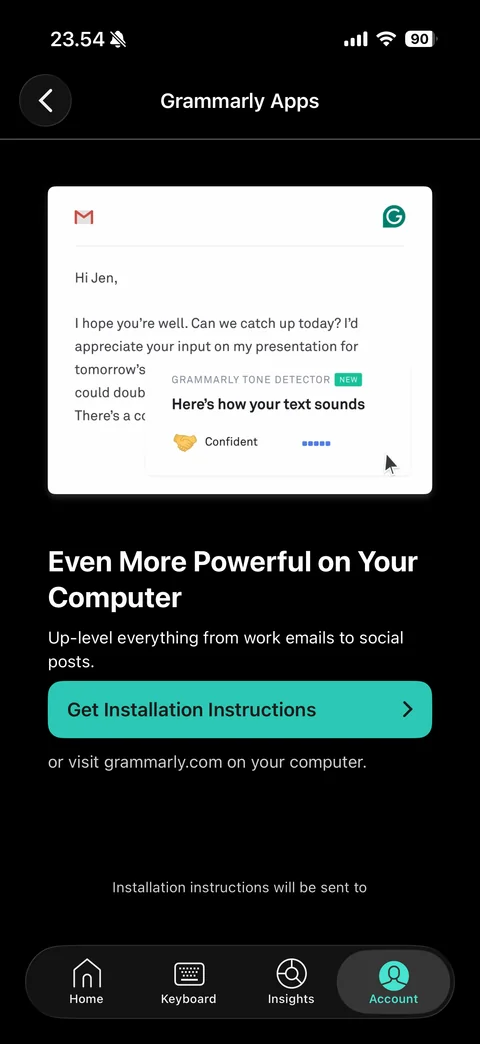
Grammarly Apps promo: Gmail email mockup with Grammarly G badge, headline Even More Powerful on Your Computer, Get Installation Instructions button, note that instructions go to the account email (covered)
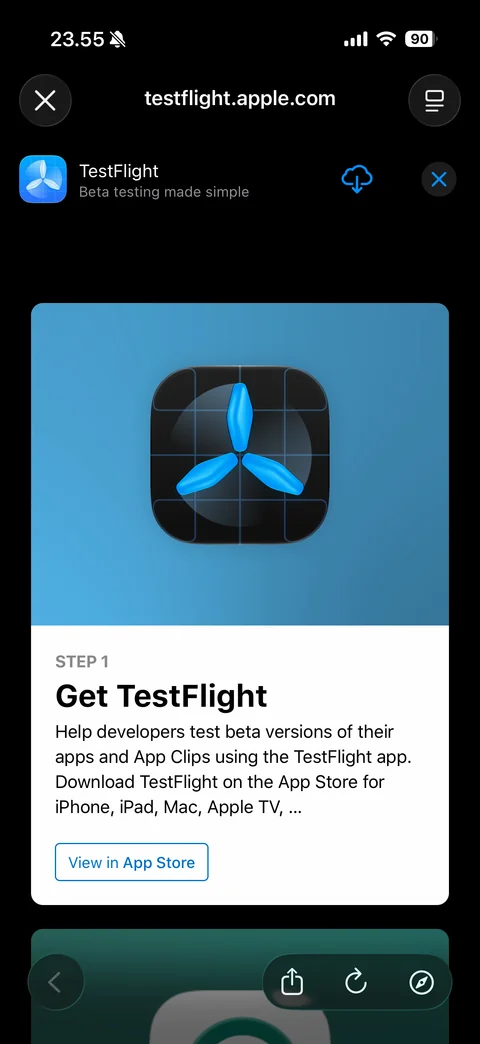
Become Beta Tester opens in-app browser on testflight.apple.com: TestFlight app banner, Step 1 Get TestFlight card with View in App Store link
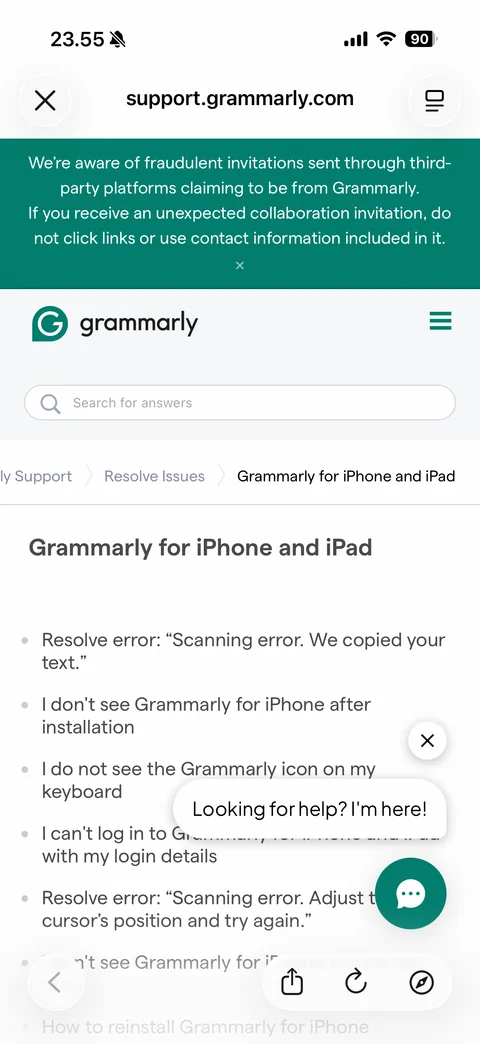
Support opens in-app browser on support.grammarly.com: fraud warning banner, search for answers, breadcrumb, Grammarly for iPhone and iPad article list, chat bubble Looking for help? I'm here!
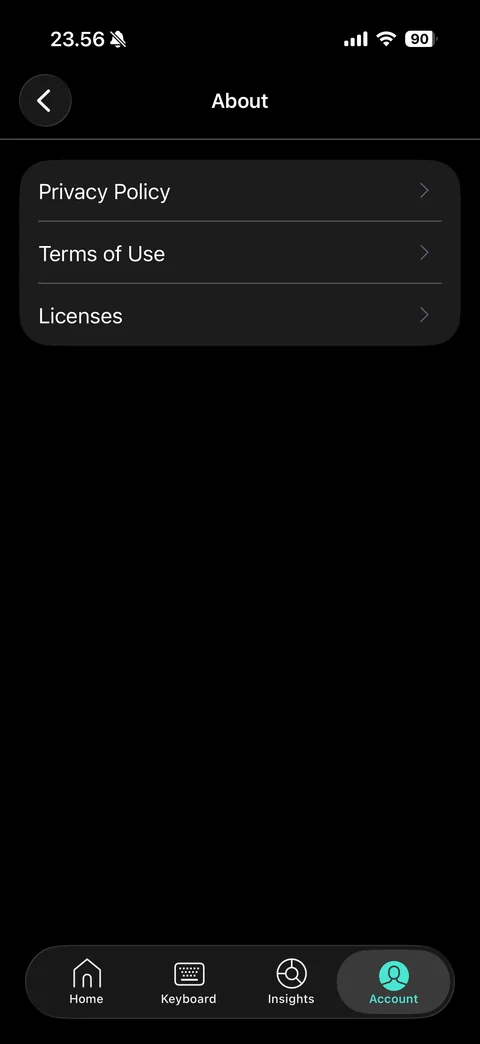
About: list with Privacy Policy, Terms of Use and Licenses rows
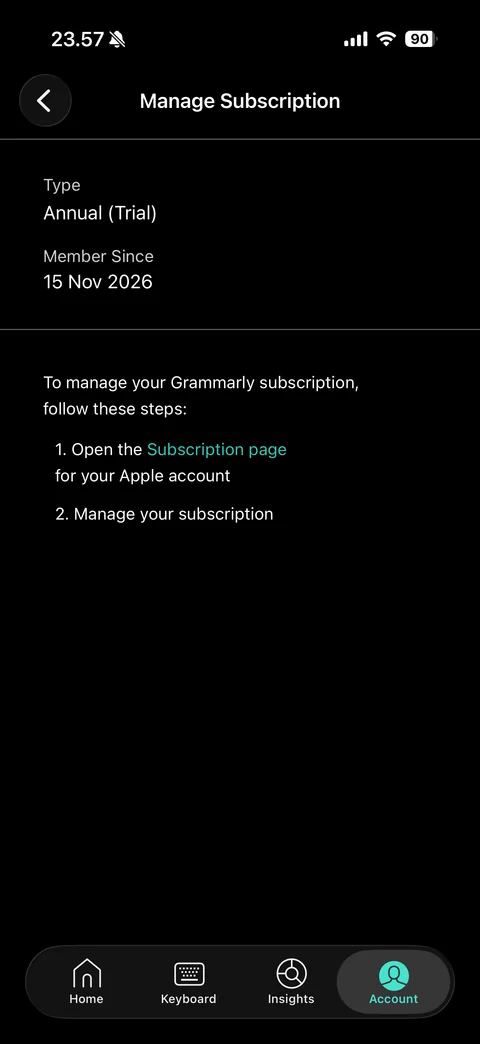
Manage Subscription: Type Annual (Trial), Member Since date, steps to manage the plan through the Apple Subscription page link
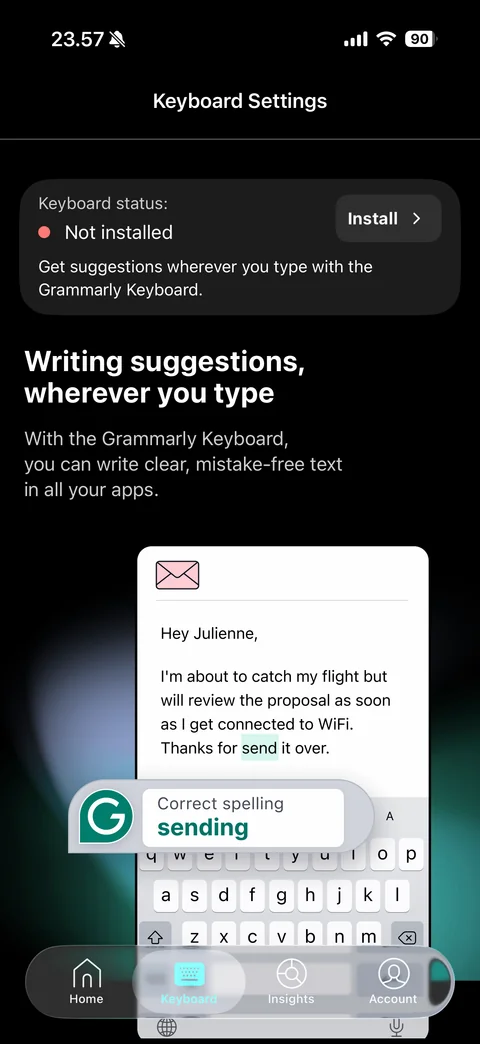
Keyboard Settings when the keyboard is not installed: status card Not installed with Install button, headline Writing suggestions, wherever you type, email mockup with Correct spelling suggestion over the keyboard
Grammarly insights (1 screen)
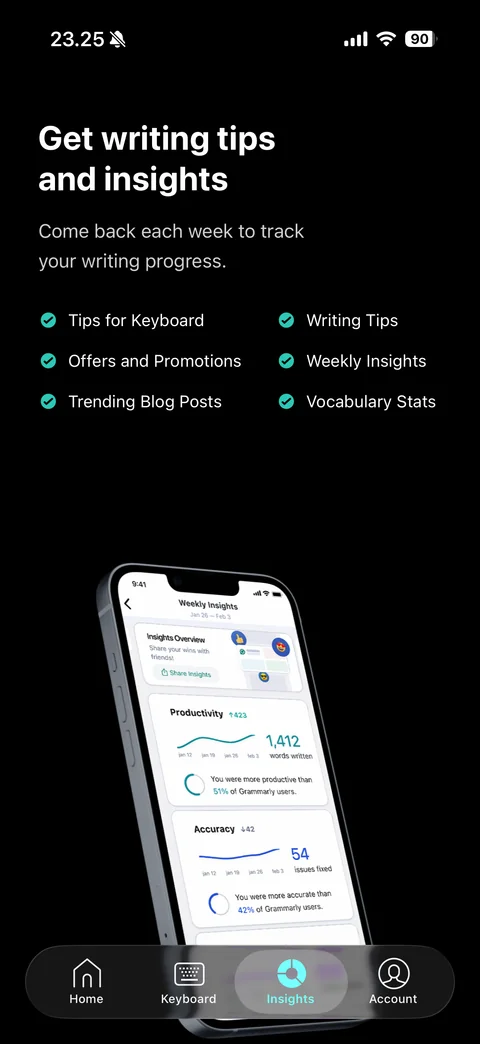
Insights tab intro: Get writing tips and insights headline, weekly progress subtitle, two-column checklist of teal-check benefits (tips for keyboard, writing tips, offers, weekly insights, blog posts, vocabulary stats), tilted iPhone mockup of Weekly Insights with productivity and accuracy line charts and percentile rings